Working with whitespace: presentation design tips
Less text and more visuals is a good start. But how you lay elements out on the slide, and how much room you give them, matters just as much.


In short: Whitespace on a slide helps guide your audience's attention, shows how elements relate and makes text easier to read. Add margins, keep spacing consistent, avoid overfilling slides and use PowerPoint's paragraph settings. Whitespace doesn't have to be white, it's simply background that doesn't pull focus.
Space: vast, unknowable and useful? When it comes to text in presentations, a "less is more" approach pays off, letting your visuals do the heavy lifting. But once you've cut down your text and created those visuals, how do you make sure they look good on the slide? Not everyone is a graphic designer (and it's fine to admit that), but everyone can borrow graphic design best practices. This article explores how to work with whitespace to create beautifully balanced slides.
"But I can't leave blank space on my slides, it looks weird!" Don't worry, there's a trick to it. Careful use of whitespace helps draw attention to important information and gives your slides a more cohesive flow.
Using whitespace for better layouts
One easy way to improve slide layouts is to add page margins and gutters. This gives the elements on your slide plenty of breathing room.
In PowerPoint you can set margins using grids and guides.
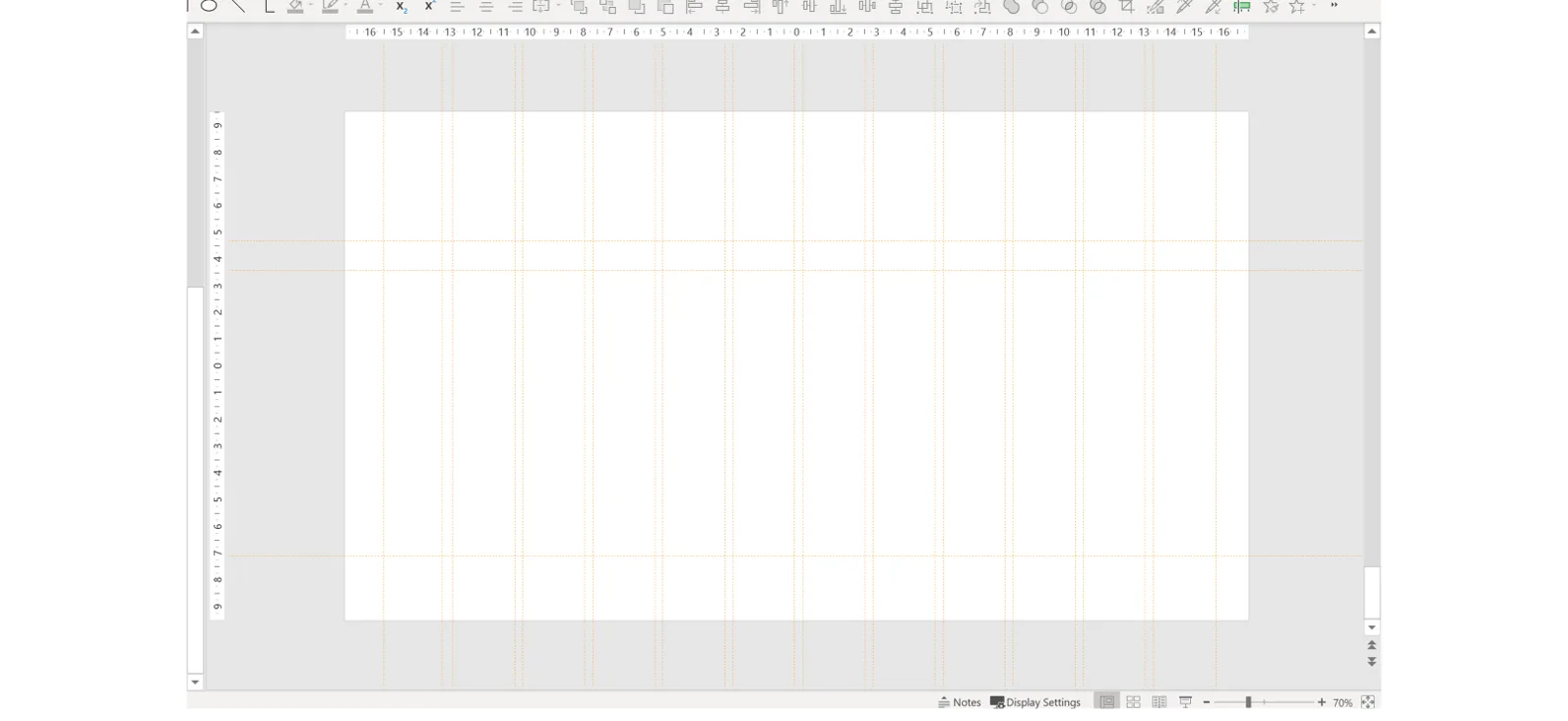
A grid is a good starting point but isn't always helpful for working out the space between objects. What does help is a consistent measuring system that keeps the gaps between elements the same size.
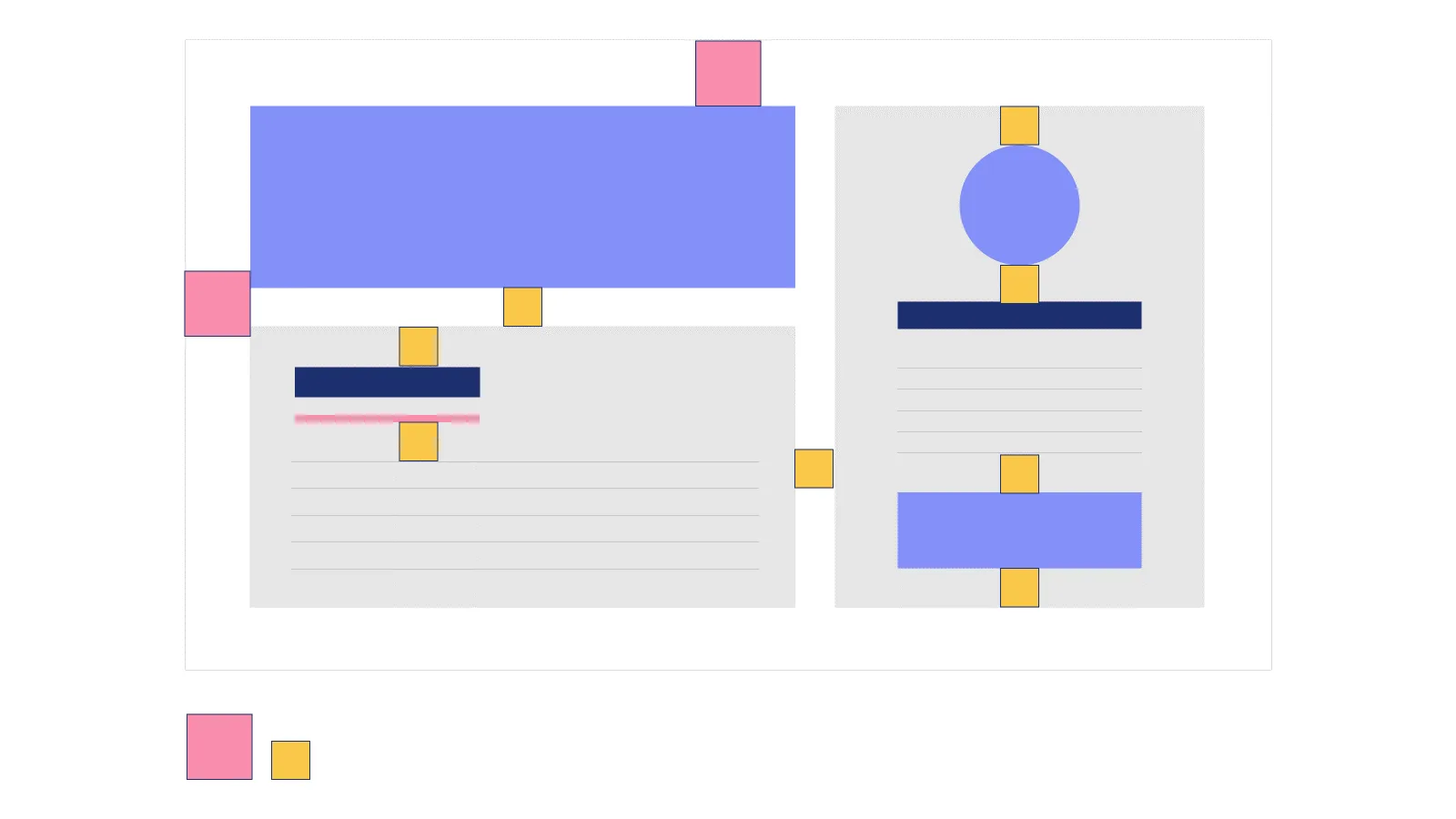
There's a simple technique. Create two squares, one bigger and one smaller, and use them as spacing guides. Make the bigger square the size of your margins and use the smaller one for the spacing between the other elements.
Put all your visuals and text on the slide first, then add the reference squares and copy them as needed. Place them between text boxes, images or on a margin and adjust the content. When you're done, delete the squares and you're left with a perfectly proportioned slide.
Using whitespace for better storytelling
Although whitespace is an excellent tool, using it poorly can make a slide harder to understand. If content is scattered or even slightly off, it doesn't just look odd, it disrupts the hierarchy and flow. Neat, consistent layouts, on the other hand, help your slides do the work for you. A simple example is grouping: subtle changes in placement give your audience an instant clue about how objects are related.

The six squares on the left have equal gaps, suggesting each object is equally related and equally important. On the right, the gaps form distinct columns, implying three categories. Thanks to whitespace, the audience understands the content straight away. Visual cues like this underline your point without you having to spell it out again and again.
Using whitespace to draw attention
Think about outer space. It's an unfathomably vast emptiness, yet what catches your eye when you look at it? Not what isn't there, but what is: the stars, the planets, tiny pinpricks of light on a dark canvas. The constellations are minuscule compared to the backdrop, but they still grab your attention. You can use the same effect on slides, using emptiness to highlight what matters.
One technique is placing a single statement over a full-bleed image:

The image fills the slide, so attention quickly goes to two things: the title and, here, the balloon. Slides like this make effective title cards or section dividers, and with well-chosen photography they help tell your story.
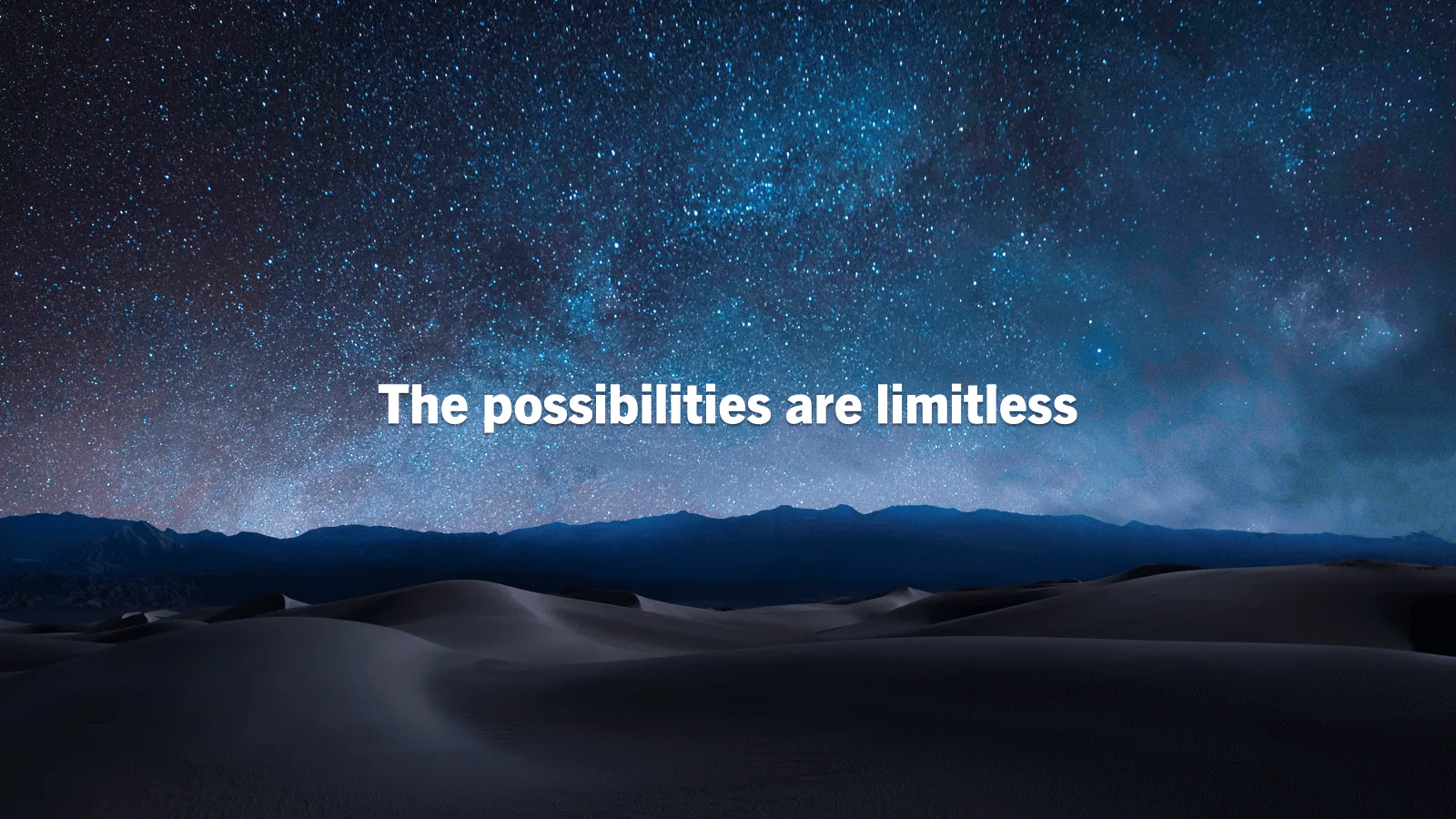
Best of all, they're easy. You don't need a design degree to make a picture fill a slide. For accessibility, though, make sure there's good contrast between text and image. So there's no need to fear whitespace, and it doesn't even have to be white, just part of the background that doesn't pull focus from your main content.
Remember, there's no good reason to overfill slides. Split content across several slides instead. It helps your pacing and makes you easier to follow. If you want to highlight a particular object, don't crowd it. Give it room to breathe and make it the centrepiece.
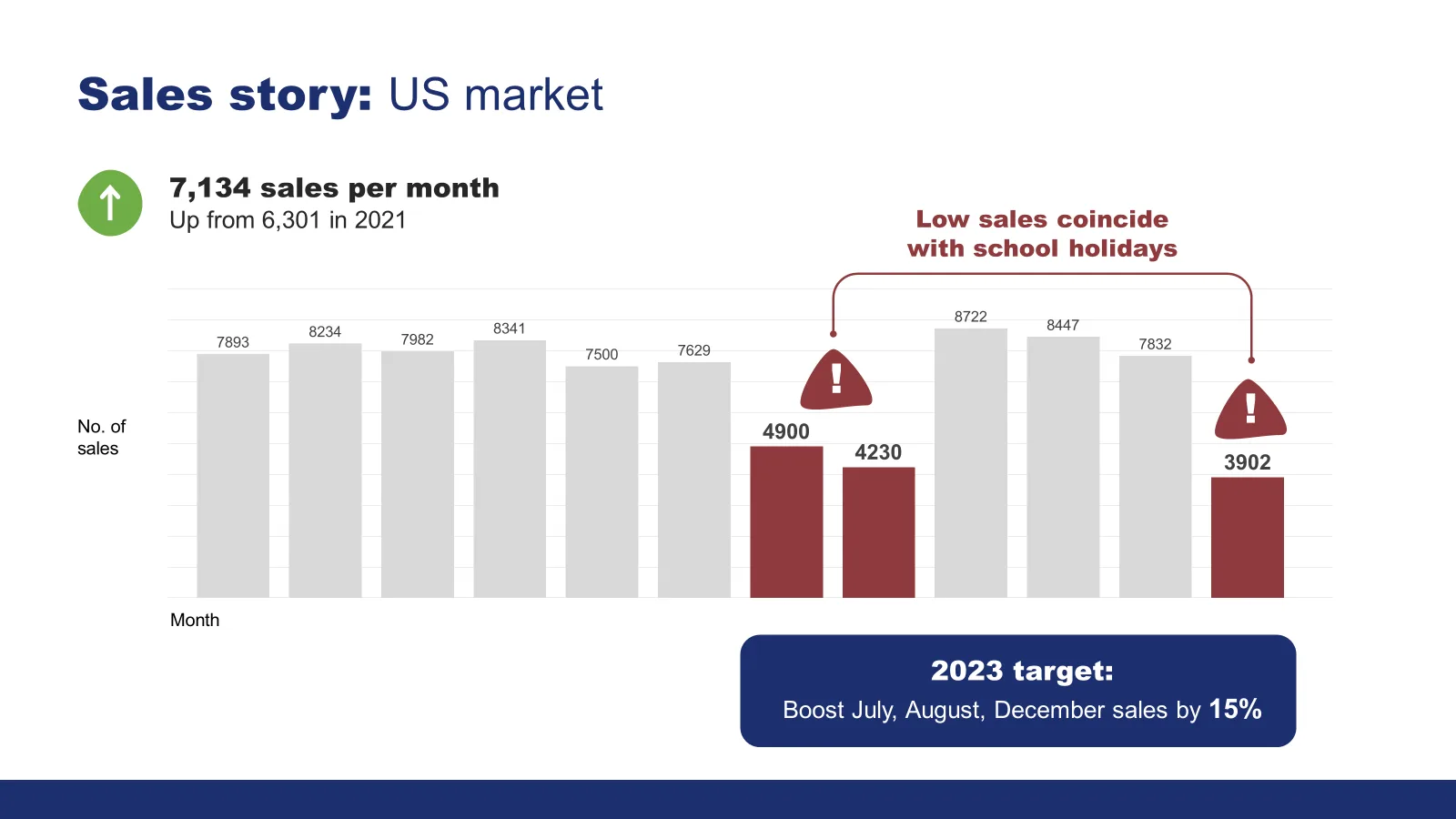
This is especially useful with data. In this example the chart is squashed in and hard to read.
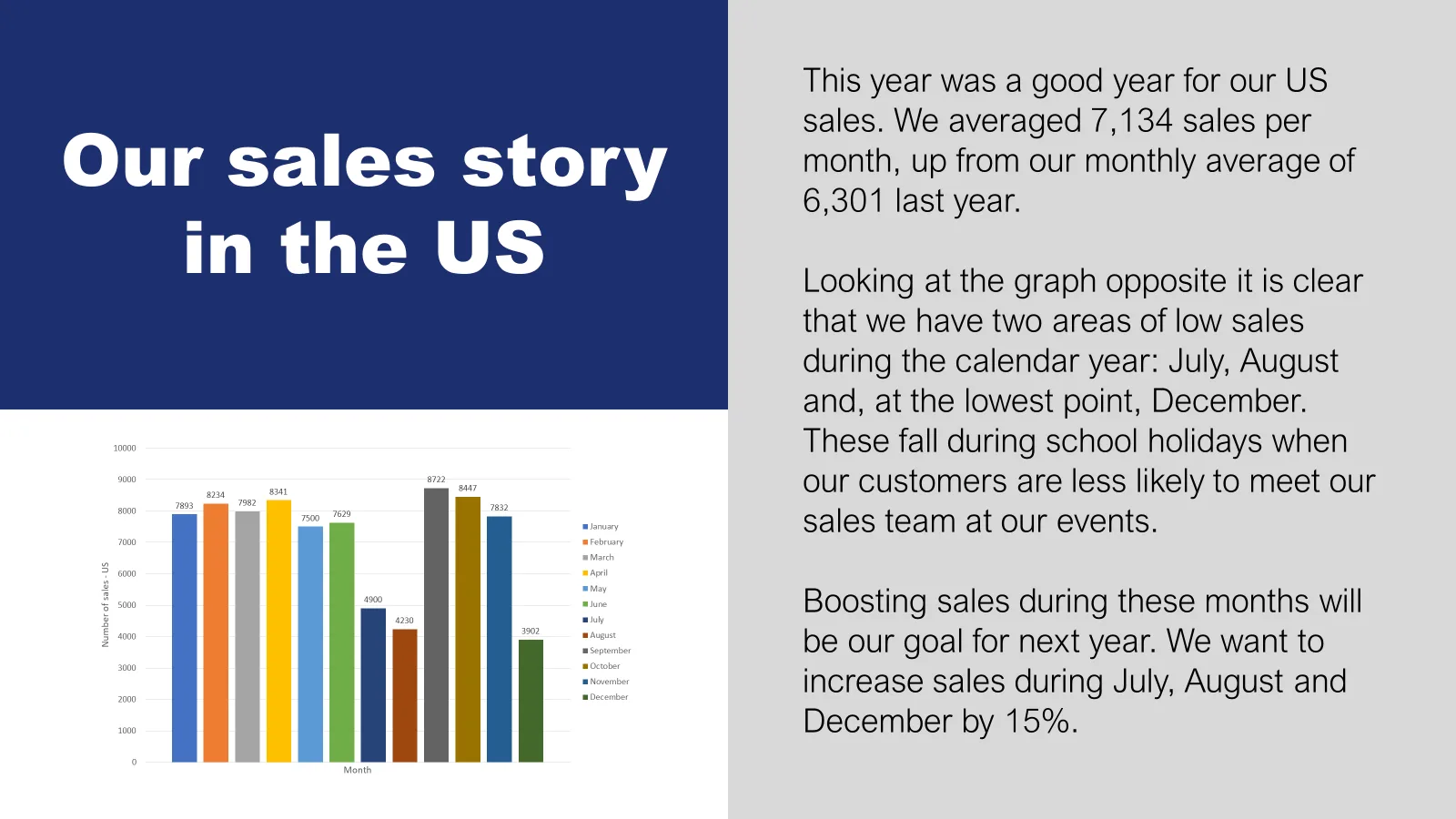
On the next slide the same chart has plenty of space, becoming the main focus so the audience can actually interpret it. The rest of the text can move to another slide or, better still, to the speaker notes.
For more minimalist design tips, see Beautiful text-only presentation.
Using whitespace for better text spacing
Whitespace isn't only about graphics, it matters for text and typography too. In text-heavy materials such as articles, handouts or training, intentional spacing makes text easier to digest.
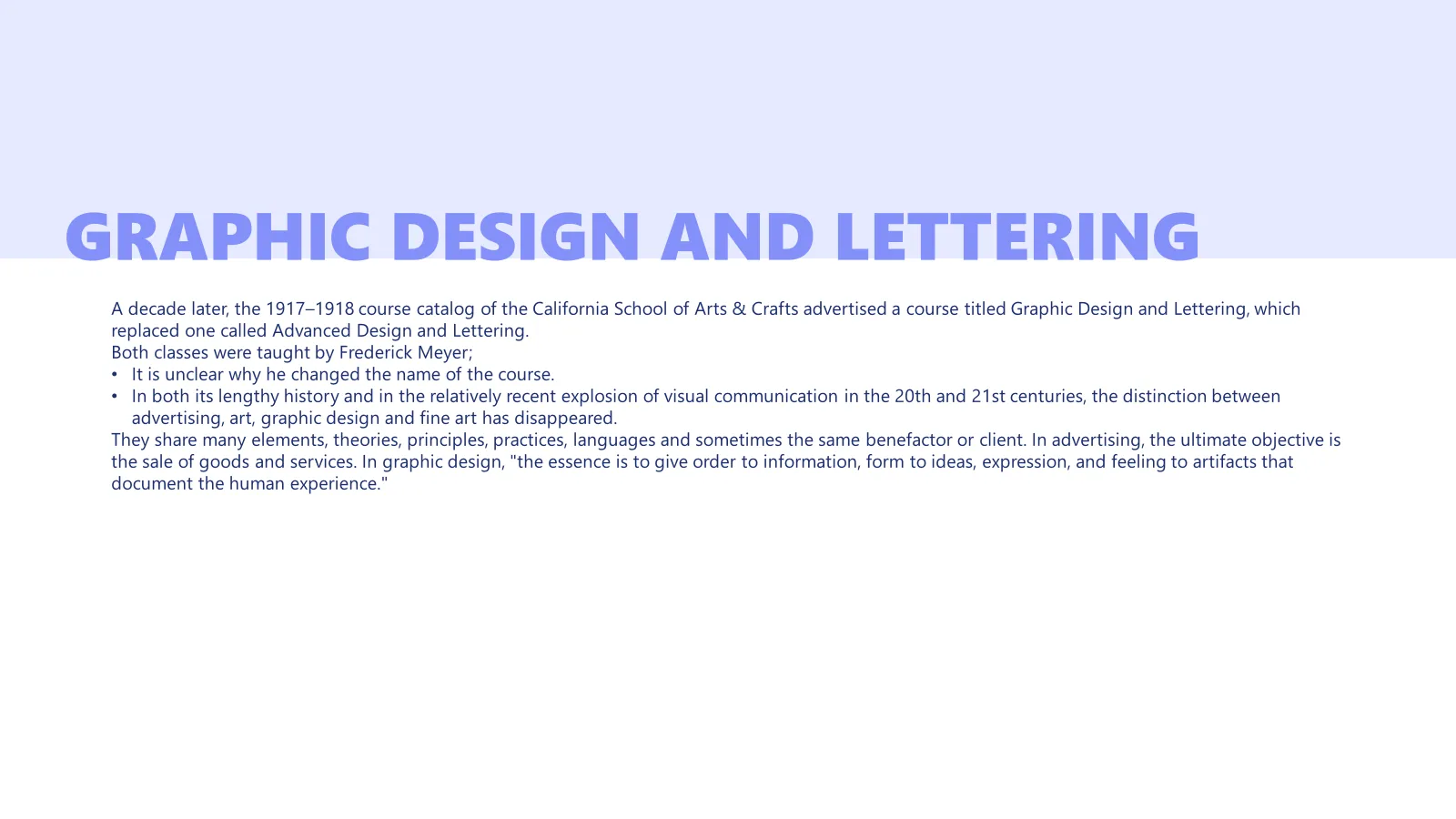
People tend to skim a block of text with no internal spacing. Lay it out like this and no one will read it properly.
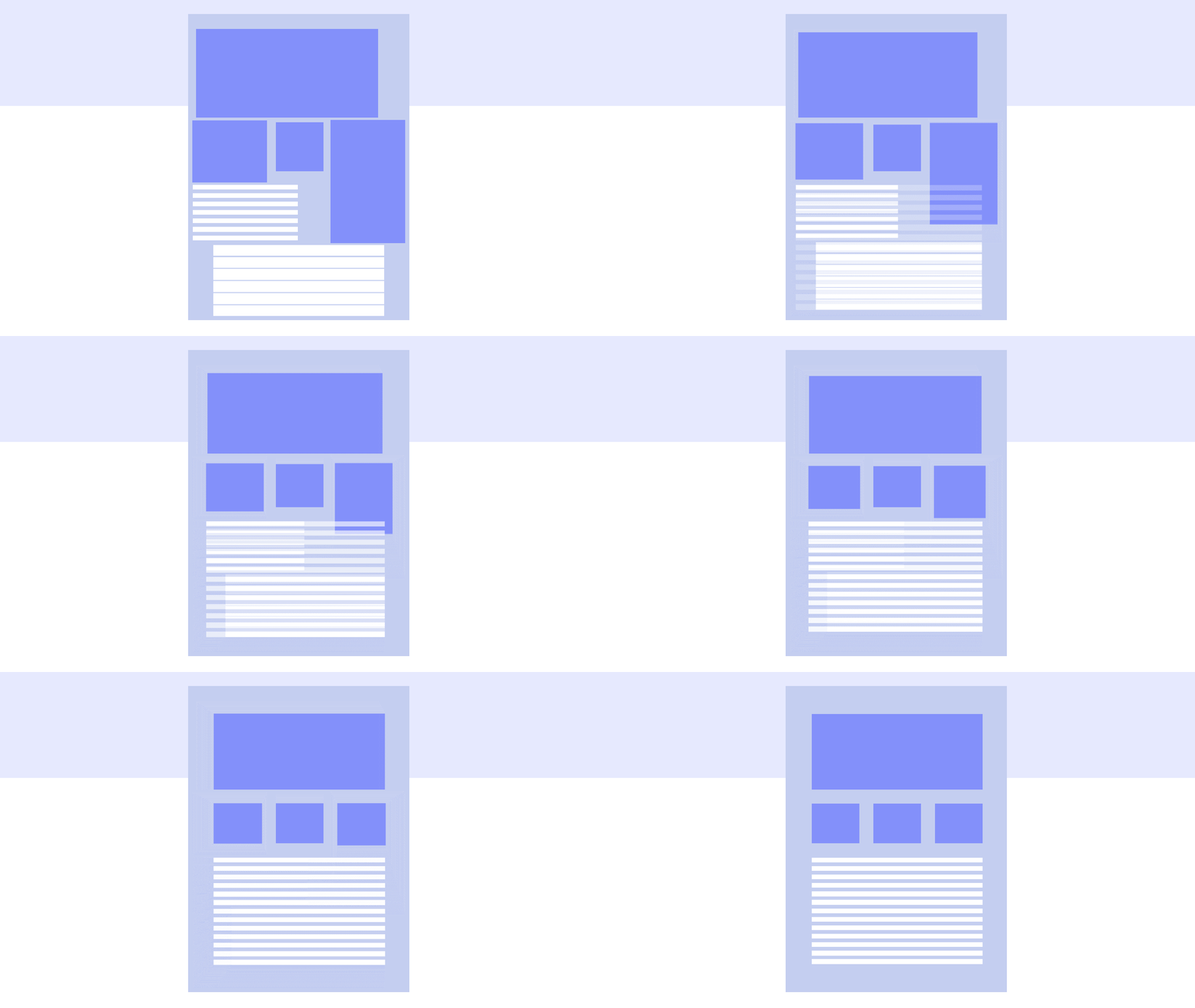
With a bit of careful spacing, the text feels far less daunting.
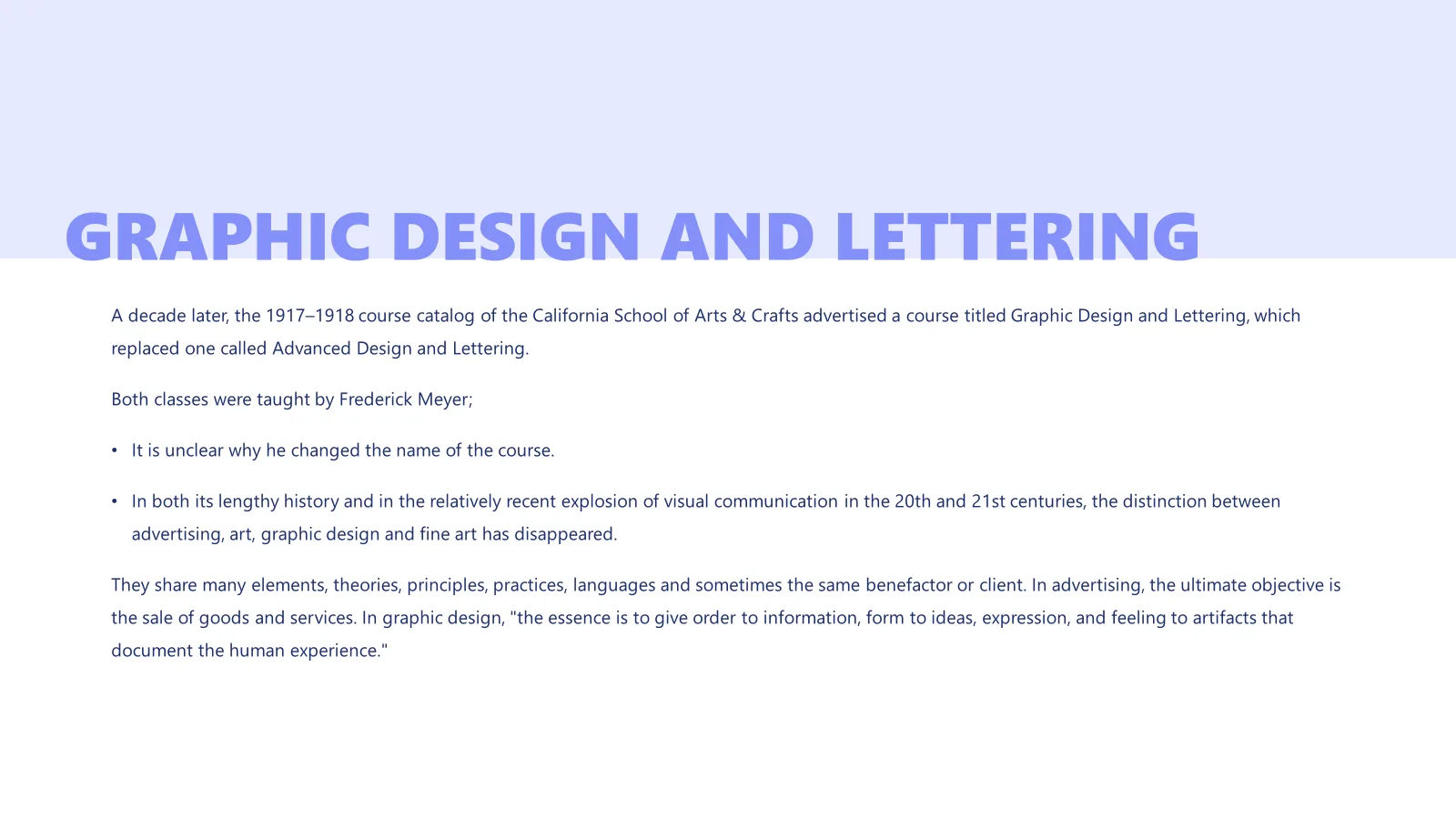
There are several ways to add whitespace to text in PowerPoint, but not all are equally useful. Avoid pressing Enter to add space between bullet points, it's time-consuming and makes text harder to edit.
Your first option is the paragraph spacing settings. Open them with the small arrow in the Paragraph section of the ribbon. Increasing the spacing before or after a paragraph creates more room between bullets.
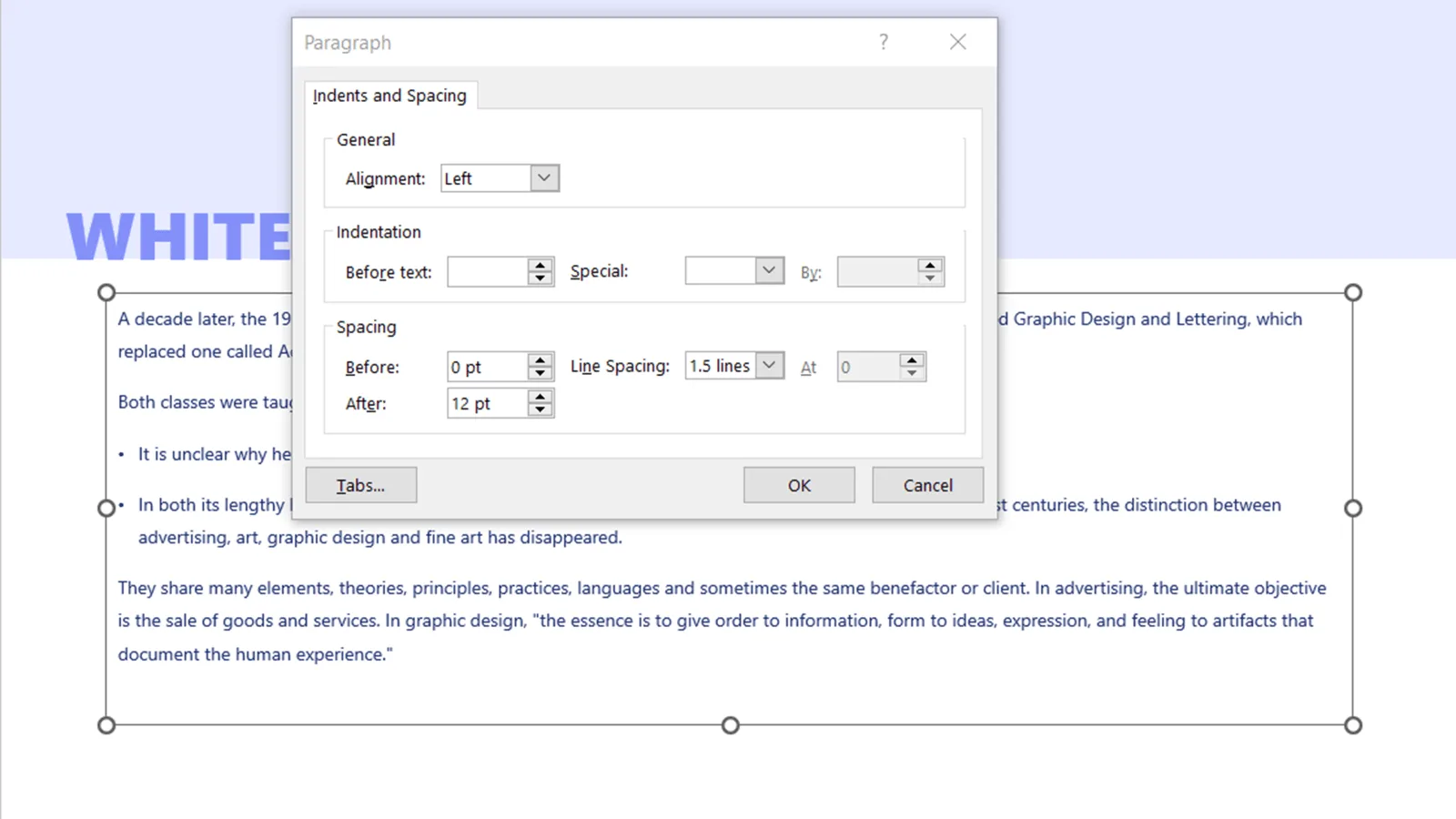
As well as space between paragraphs, you need enough space between lines. You can adjust line spacing in the same dialog, though PowerPoint's options here are limited.
With all this in mind, be intentional about how you place objects and aware of how it affects your audience. Use whitespace to draw attention to key points, use the space between objects and text to highlight content, and use layout to maximise your slides' impact.
Questions and answers
What is whitespace in a presentation?
It's the area of a slide without text or images. It doesn't have to be white; it can be a calm part of a background or photo that doesn't pull focus from the main content.
How do I keep spacing consistent on a slide?
Set margins with guides and use two helper squares: a bigger one for margins and a smaller one for gaps between elements. Delete them once everything is aligned.
How should I show a chart so the audience understands it?
Give the chart most of the slide, label only the key values and add one takeaway sentence. Move explanatory text to another slide or the speaker notes.
How do I add space between bullet points in PowerPoint?
Don't use Enter. Open the Paragraph settings and increase the spacing before or after the paragraph, or adjust the line spacing.
If you want a presentation that looks clean and balanced, PeknéPrezky can design one for you from scratch or redesign your existing deck.
'%3e%3cg%3e%3cg%20clip-path='url(%23clip0)'%3e%3cg%20clip-path='url(%23clip1)'%3e%3cg%20clip-path='url(%23clip2)'%3e%3cpath%20d='M42.2903%206.48009%2037.5197%201.70949C36.9562%201.146%2036.0425%201.146%2035.479%201.70949L30.7084%206.48009C30.2956%206.89285%2030.2956%207.56209%2030.7084%207.97488%2031.1211%208.38769%2031.7903%208.38769%2032.2031%207.97492L35.4604%204.73558C35.3251%2018.2709%2028.8666%2022.8405%2024.9997%2024.3607%2024.7212%2024.4702%2024.4394%2024.5702%2024.1543%2024.6608%2024.4533%2023.5617%2024.6761%2022.4433%2024.8209%2021.3136%2025.2952%2017.5644%2024.7544%2014.4593%2023.297%2012.5703%2021.0817%209.69872%2018.1357%208.40341%2015.0033%208.92243%2013.4035%209.19858%2011.9099%209.90805%2010.6851%2010.9737%209.44744%2012.0265%208.51416%2013.3913%207.98207%2014.9266%206.95868%2017.928%207.73529%2021.1154%2010.1133%2023.6717%2012.3931%2026.1228%2016.0101%2027.4462%2019.8085%2027.4461%2020.1948%2027.4461%2020.5826%2027.4323%2020.9716%2027.4045%2020.447%2028.6318%2019.8231%2029.8142%2019.1062%2030.94%2016.6406%2034.8015%2011.0472%2040.9488%201.28823%2038.7374%200.718472%2038.6156%200.157894%2038.9788%200.0361458%2039.5486-0.0835124%2040.1086%200.265397%2040.6617%200.822294%2040.795%202.2854%2041.1332%203.78171%2041.307%205.28339%2041.313%207.92696%2041.3246%2010.5362%2040.7137%2012.8998%2039.5297%2015.9982%2037.9815%2018.7592%2035.404%2020.8844%2032.0759%2021.8907%2030.4935%2022.7285%2028.8101%2023.3841%2027.0532%2024.1978%2026.8725%2024.9962%2026.6288%2025.772%2026.3242%2029.1932%2024.979%2032.0632%2022.4904%2034.0714%2019.1272%2036.3368%2015.3337%2037.513%2010.4981%2037.5709%204.74972L40.7959%207.97475C41.2087%208.38752%2041.8779%208.38752%2042.2907%207.97471%2042.7034%207.56192%2042.7034%206.89269%2042.2906%206.47993ZM22.7279%2021.0489C22.5458%2022.4549%2022.2349%2023.8412%2021.7992%2025.1903%2017.8943%2025.7249%2013.8966%2024.6417%2011.6577%2022.2348%209.79897%2020.2366%209.20266%2017.8833%209.97861%2015.6075%2010.7816%2013.2529%2012.9394%2011.4029%2015.3479%2011.0038%2015.6673%2010.9506%2015.9904%2010.9237%2016.3141%2010.9235%2018.2891%2010.9235%2020.1473%2011.9417%2021.6263%2013.8589%2022.7245%2015.2823%2023.1259%2017.9029%2022.7279%2021.0488Z'%20fill='%23BFBFBF'%20fill-rule='nonzero'%20fill-opacity='1'%20transform='matrix(0.771742%200.635935%200.635935%20-0.771742%20356.612%204176.52)'/%3e%3c/g%3e%3c/g%3e%3c/g%3e%3c/g%3e%3c/g%3e%3c/svg%3e)