Top PowerPoint Keyboard Shortcuts to Present Like a Pro
From business consultants to sales reps and entrepreneurs, anyone who works with presentations can benefit from knowing some PowerPoint keyboard shortcuts. Here are 20+ handy commands to help you shine before and during your presentations.

In short: PowerPoint keyboard shortcuts speed up working with slides – from quick formatting (Shift, Ctrl+J/E/L/R, F7) and editing the structure (Ctrl+M, Ctrl+D, Ctrl+arrows) to running the slideshow (F5, Shift+F5, pen, highlighter, laser, B/W, G). If you forget a shortcut, press F1 during the slideshow. At the end of the article you will find an infographic with all the shortcuts.
But First, What Are PowerPoint Shortcuts?
PowerPoint shortcuts are keys or keyboard combinations that quickly allow you to perform an action in the program. Otherwise, you'd have to use your mouse or navigate through multiple menus and toolbars until finding the right command. In other words, PowerPoint keyboard shortcuts help you reduce steps and optimize your experience when working in a presentation.
Now, let's see which are the top shortcut keys you should know:
Useful PowerPoint Keyboard Shortcuts for Last-minute Changes
Even the most experienced speakers find themselves making last-minute changes in their slides' appearance or presentation structure. It's just part of the presenter's life. But there's no reason to panic, the following keyboard shortcuts will give you a hand in those moments.
PowerPoint Shortcuts for Quick Formatting
1) Use "Alt+W+M" to enter Slide Master View
For last-minute changes in the layout of your presentation, your slide master is the place to go.
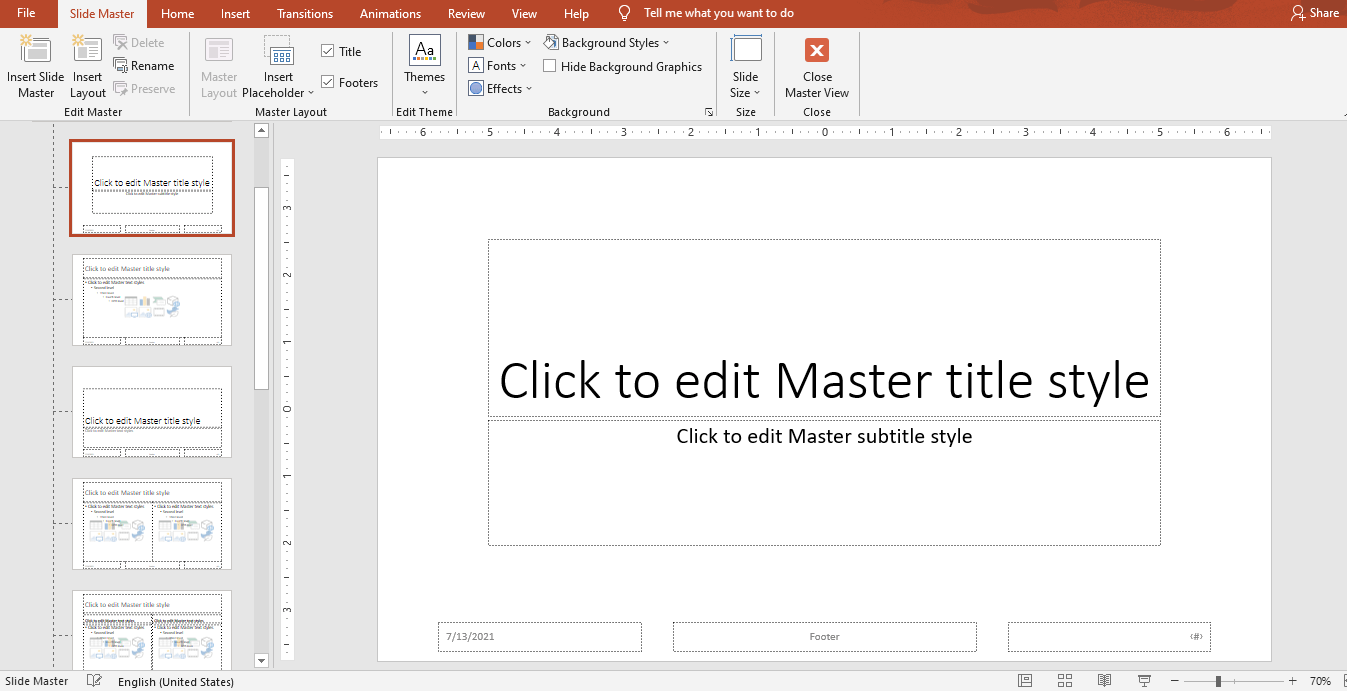
Let's say you want to replace the logo in your footer, change the color palette, or replace the font of your headlines. When you have only a few minutes available before presenting, this seems like an impossible task but here's the secret: anything that you put in your slide master will apply to all your slides so that you don't need to go fixing them one by one.
2) Use "Shift" to keep objects in proportion
Have you ever resized a circle in PowerPoint and it ended up looking like an oval? When you resize by sight it's hard to obtain perfect symmetry but the "Shift" key can help with that.
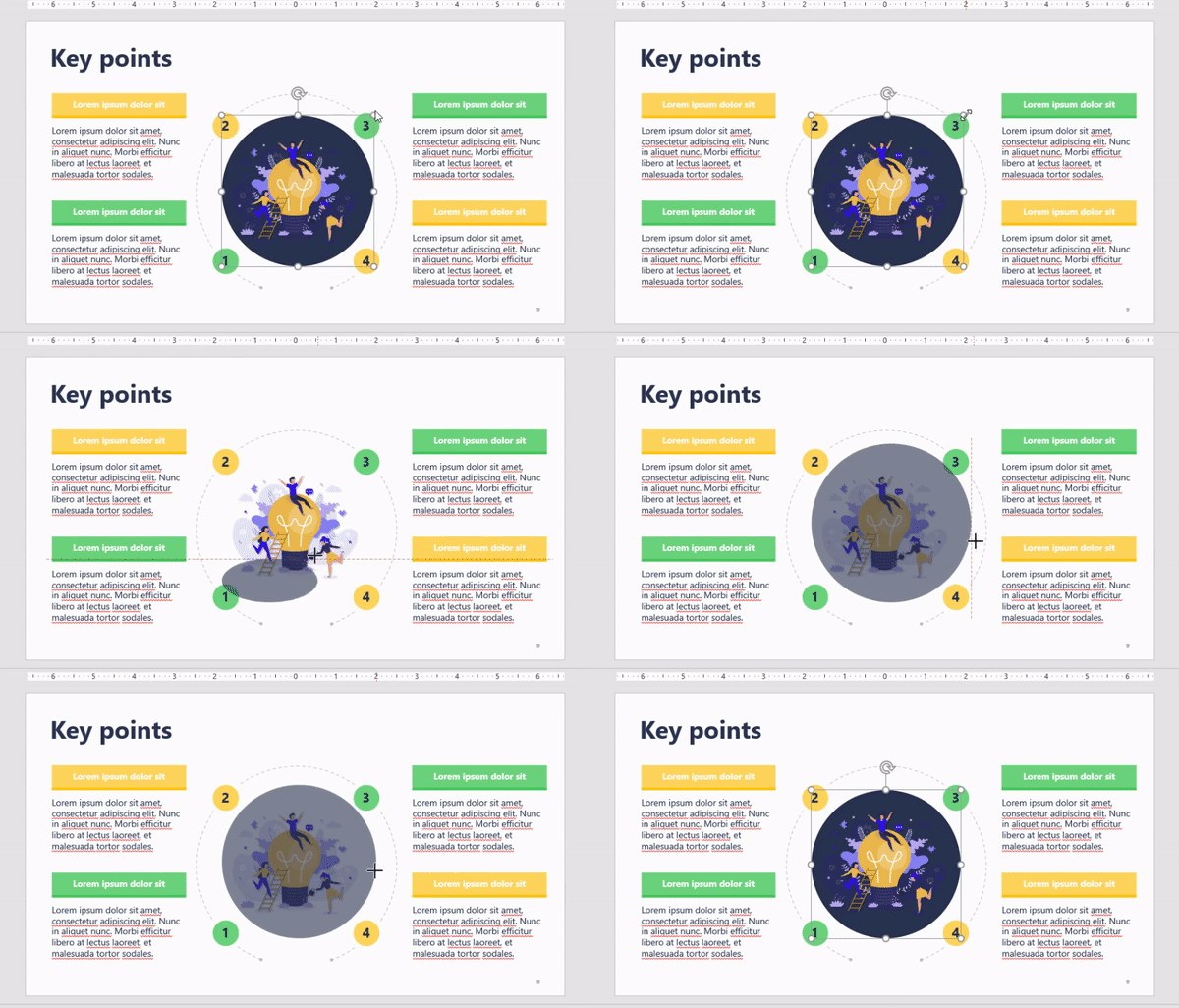
Simply press and hold "Shift" while resizing your elements. This comes in handy to make your objects bigger or smaller without losing their proportions. It works for shapes, images, and any other object in your slides.
3) Align your text
Alignment is essential to provide a clean and professional aspect to your documents. However, as formatting is one of the last steps in the making of a presentation, people tend to forget it. If this happens to you often, these are the PowerPoint shortcuts you need for a quick text alignment before starting your slide show:
- Use "Ctrl + J" to justify your text
- Press "Ctrl + E" to center the text
- Use "Ctrl + L" for left alignment
- Press "Ctrl + R" to right-align your text
4) Use F7 to check your spelling
Most people don't know this but you can actually check your presentation's spelling in PowerPoint. It's pretty simple: once you enter the last words in your slides, press F7. A new section will appear at the right of your screen showing misspelled words and giving you some options you can replace them with.
In some cases, you might need to try with "Fn + F7" to activate the check spelling shortcut.
PowerPoint Keys to Edit Your Presentation Structure
1) Use "Ctrl + M" to insert a new slide
Sometimes new information appears right before the big moment and you need to quickly update your presentation. Whenever you find yourself in this situation, select a slide and press "Ctrl + M" to insert a new one. You'll have a fresh title slide to keep adding content.
2) Use "Ctrl + D" to duplicate
But if you want to have similar slides, use "Ctrl + D" to duplicate them. This way, instead of working from a blank slide, you'll be able to use one as your base and replace as much information as you want. This PowerPoint shortcut works for slides and objects alike.
3) Move slides
Arrange your presentation structure by using "Ctrl + Up arrow" to move a slide up or "Ctrl + Down arrow" to move it down.
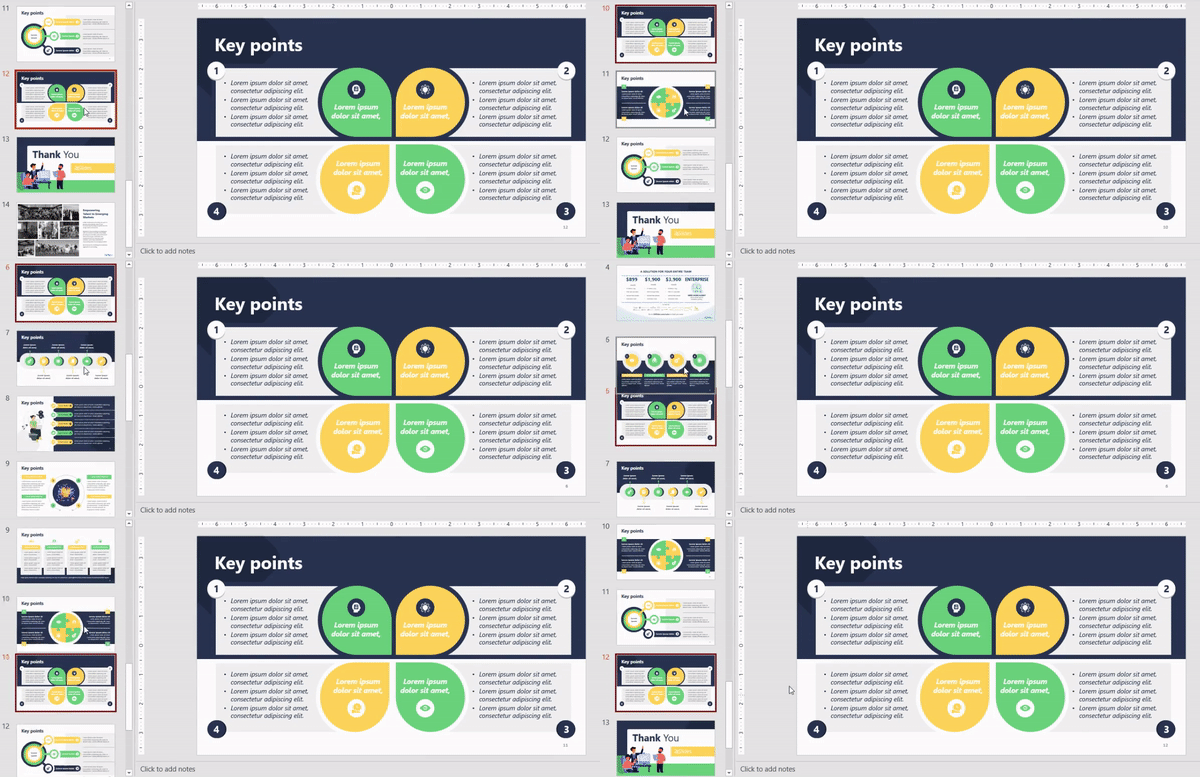
This PowerPoint shortcut is very useful especially when working with long presentations. Here's why: dragging slides one by one makes the thumbnails pass quickly and if you have 30+ slides, you'll need more than a few seconds to land your slide in the spot that you want. Save yourself some time with this simple trick.
PowerPoint Shortcut Keys to Use During a Presentation
There are other PowerPoint keyboard shortcuts that only work in the slide show mode. We'll go from basic commands to some advanced keyboard shortcuts to help you manage your presentation like a pro.
Basic PowerPoint Commands
1) Use F5 to start a Slideshow
Done editing and ready to present? Press F5 to start your slideshow from the first slide.
2) Use "Shift + F5" to start from the current slide
If you want to start from a specific slide, press "Shift + F5". Let's say you made a pause in your presentation to review some slides and want to pick up where you left off. Just select the last slide you were at and use this shortcut. It will save you tons of time because you won't have to go through all your slides again.
3) Zoom in and Zoom out
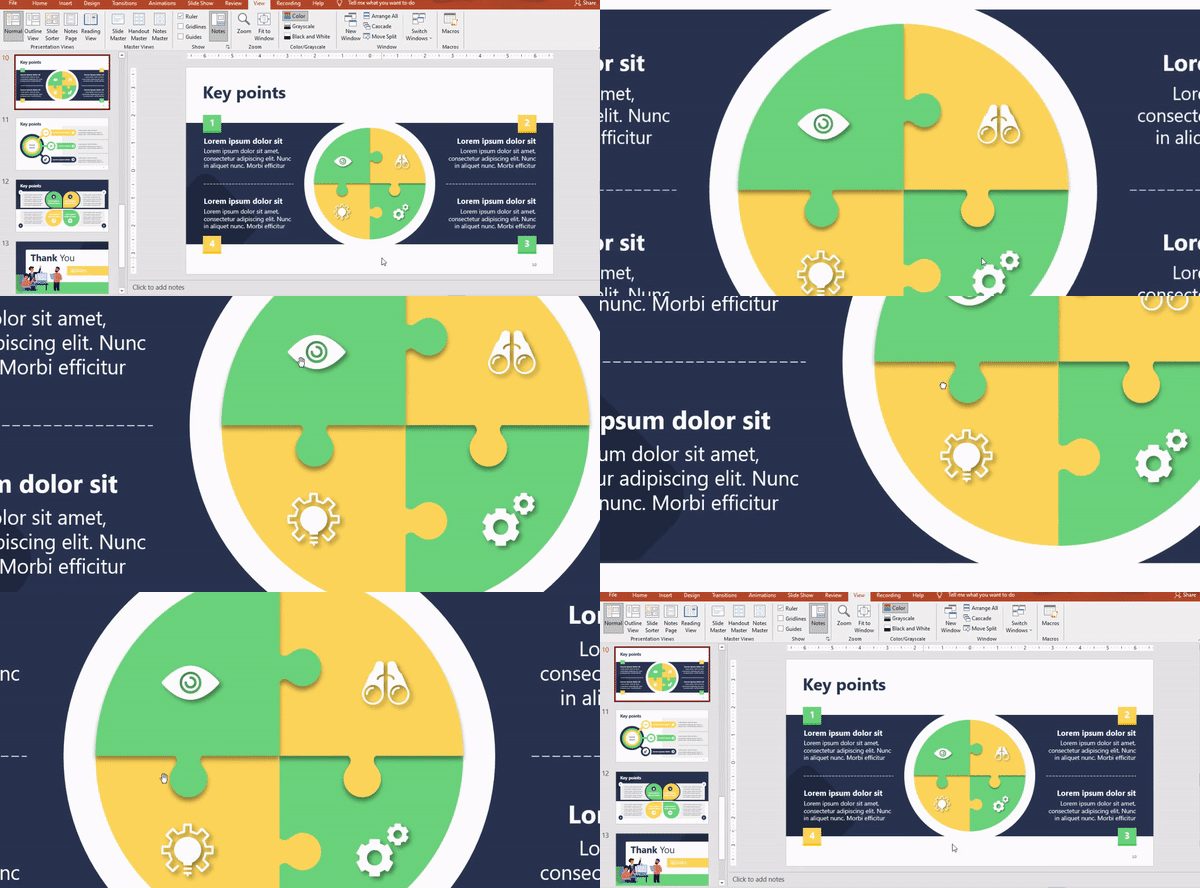
Whenever you want to show an area of your slide in detail, press "+" to zoom in. You'll be able to get a closer view of any element in your slide just by dragging the pointer. And when you're finished zoom out with "-".
Advanced PowerPoint Shortcuts to Wow your Audience
1) Annotate in your slides
Did you know that you can mark up your slides during a live presentation? Yes, PowerPoint has some secret tools that help you grab and hold your audience's attention while on a slideshow. And here are the shortcuts you need to activate them:
- Use "Ctrl + P" for a Pen Tool
You'll be able to draw free lines and scribble across your slide. The PowerPoint pen tool comes in handy when you want to explain a process or show how to get from one point to another.
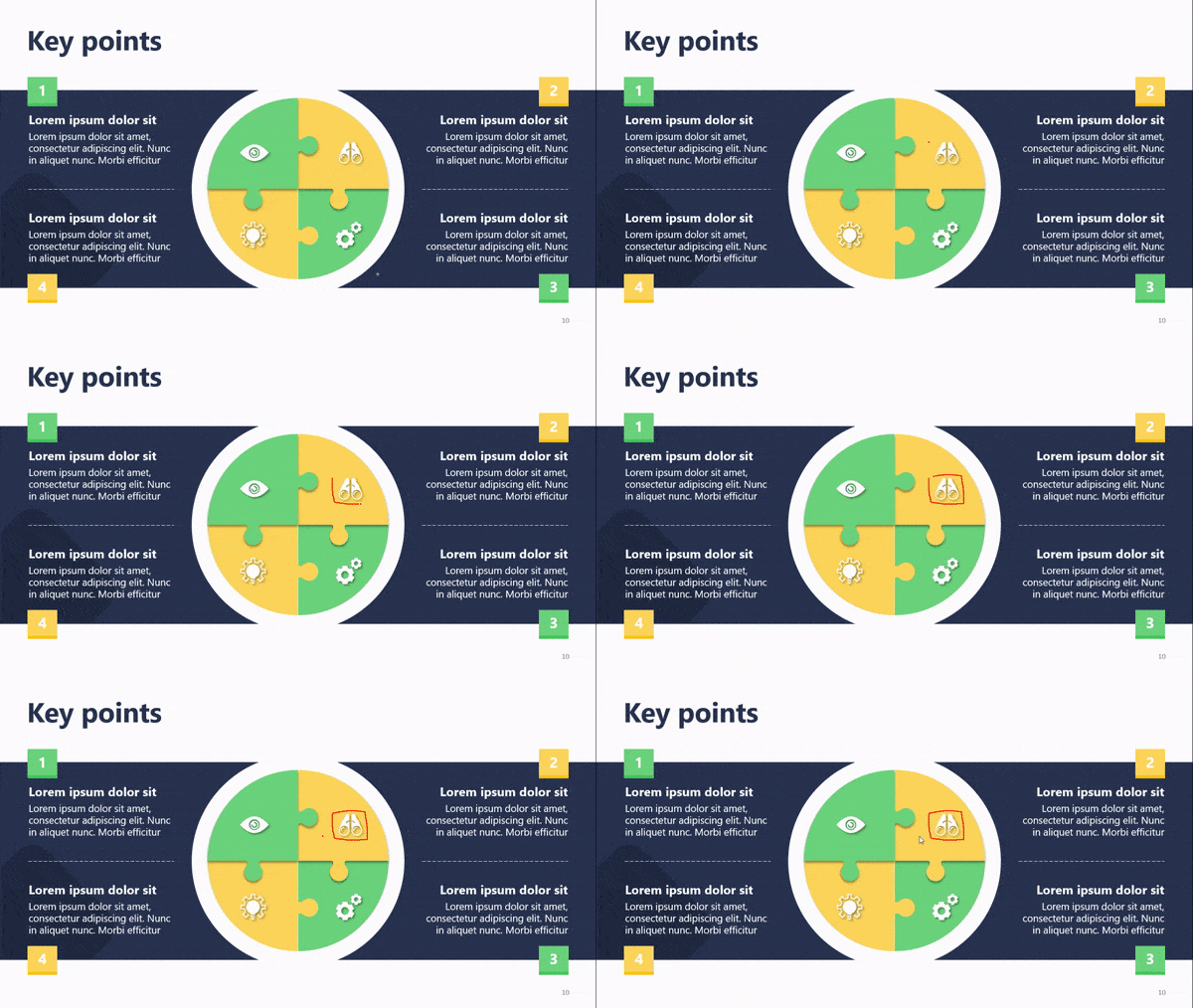
- Use "Ctrl + I" for a Highlighter
The PowerPoint highlighter pen uses a yellow color to help you annotate and draw attention to your slide's key points.
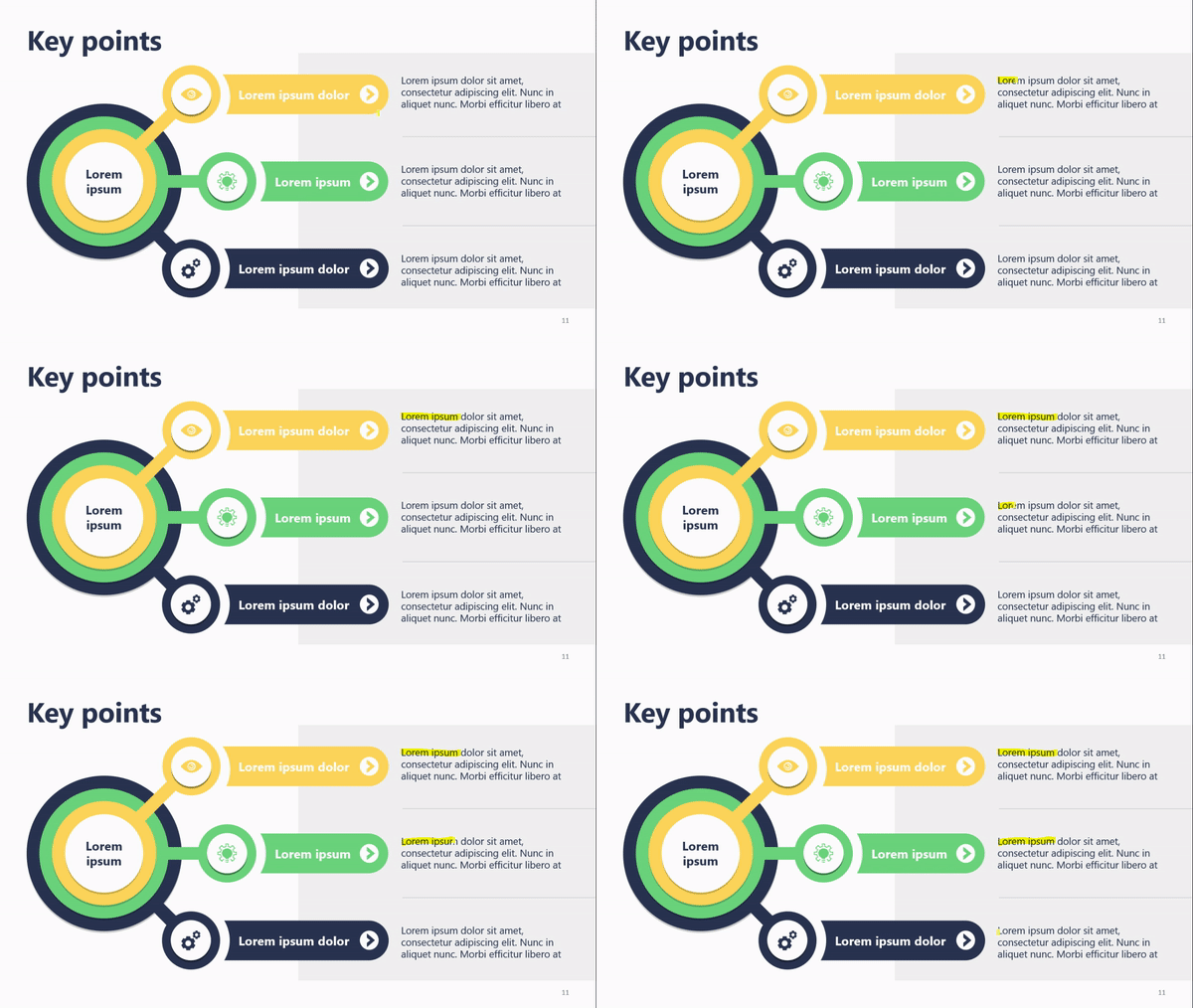
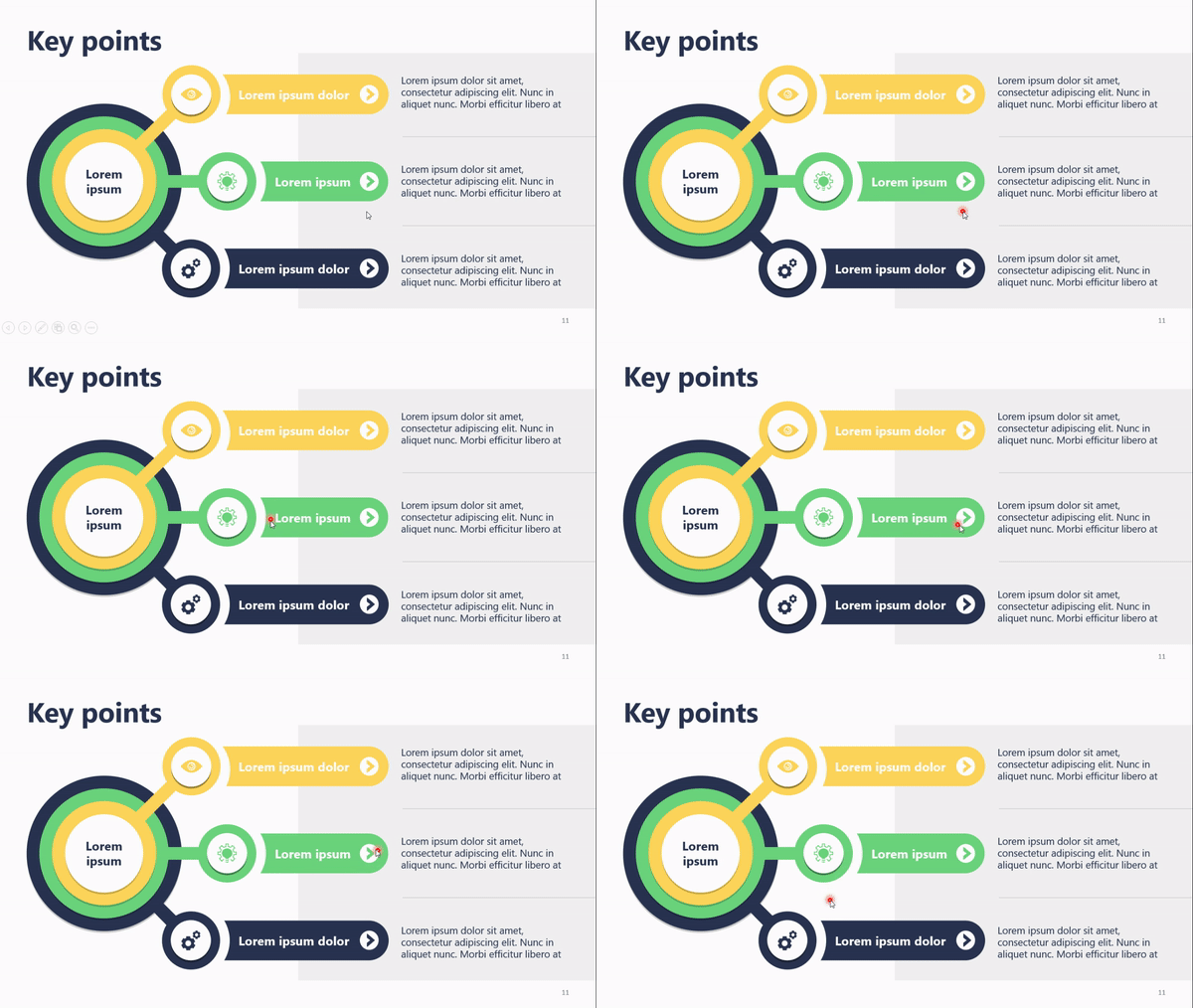
- Use "Ctrl + L" for a Laser
A laser pointer is always useful to highlight specific aspects of your presentation. But don't worry if you didn't bring yours, PowerPoint lets you turn your cursor into a cool laser pointer.
- Extra: The PowerPoint Eraser tool
Now that you know how to annotate in your presentation, here is how to erase the marks you made in your slides. Use "Ctrl + E" to activate the Eraser tool. And if you want all the marks to vanish at once, just press the E key.
2) Show a black or white screen
Sometimes you're elaborating on a concept and want people to focus all their attention on you and not your slides. In those moments, use the key "B" to change the screen to black during a slideshow or "W" to turn it white. You can go back to your slides by pressing the same key again.
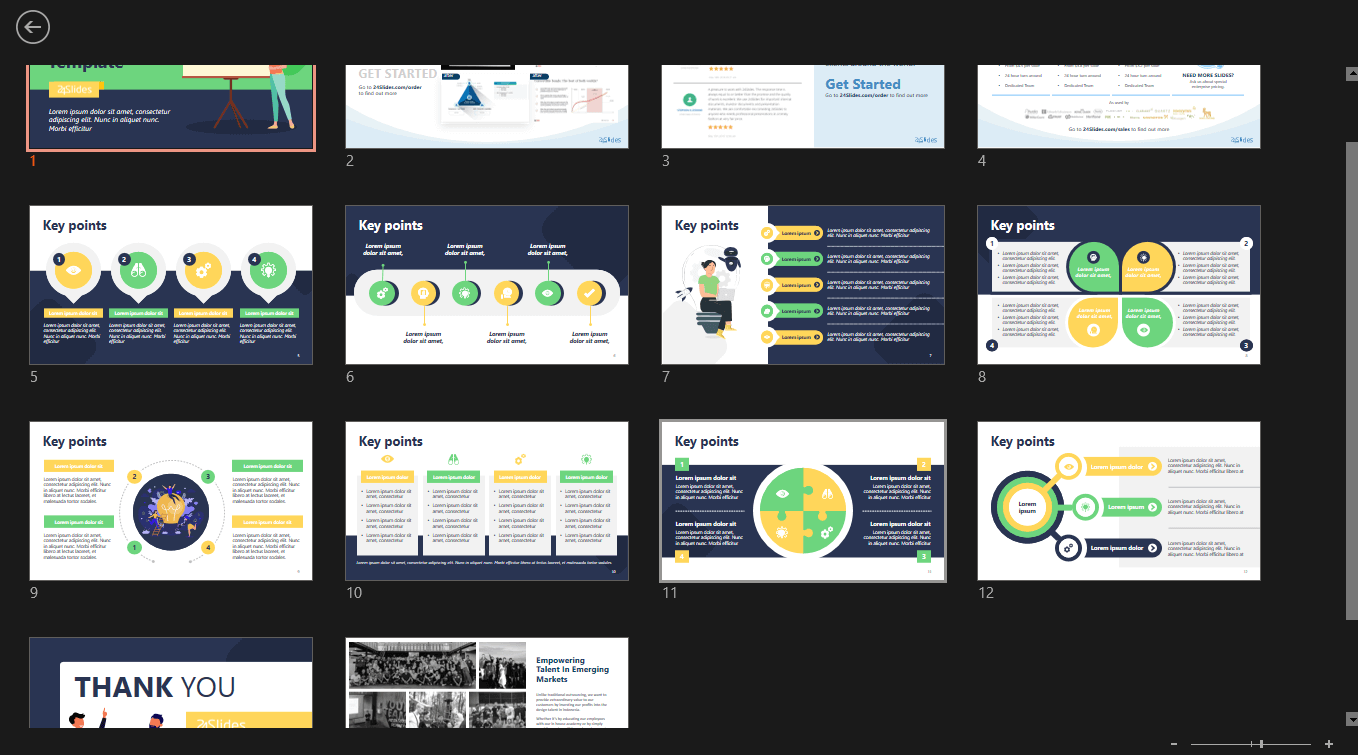
3) Use "G" to display all the slides
You'll open a nice visualization of all your slides so you can easily go back and forth through your presentation in a matter of seconds. Try it and check your audience's reaction!
How to See Your Keyboard Shortcuts in PowerPoint?
There are so many PowerPoint shortcuts that it's impossible to remember them all. But that shouldn't be a problem for presenters, because PowerPoint offers some help.
A) In Presentation Mode
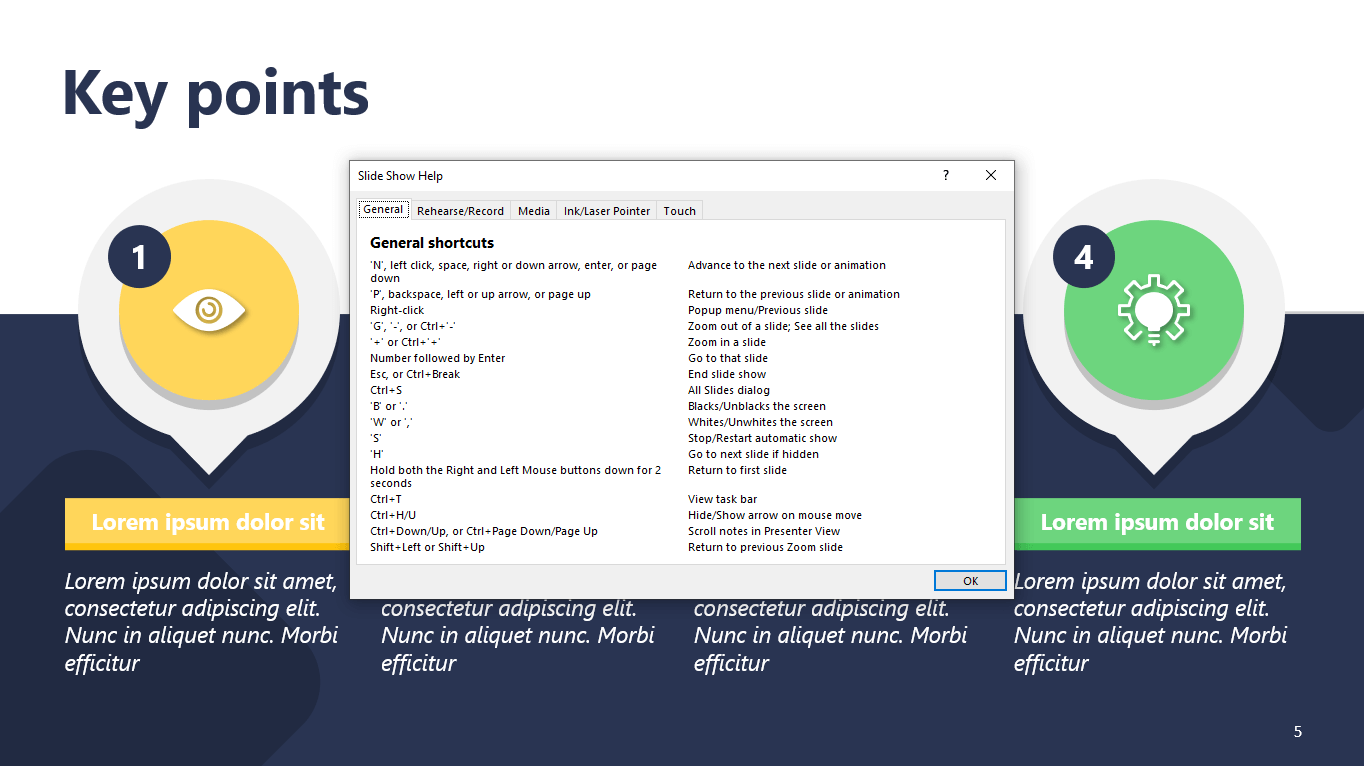
Whenever you need to check how to use keyboard shortcuts during your presentation, press F1. A slide show help dialog box will display a list of your PowerPoint shortcuts available.
B) In Normal View
There are other types of shortcuts in PowerPoint called Key Tips or Access Keys which allow you to navigate through the ribbons and main menu. To activate them, press Alt or F10.

C) Help Box
If you want to get the full list of PowerPoint shortcuts and further information about them, use the Help box. Just press F1 and search for "shortcuts".
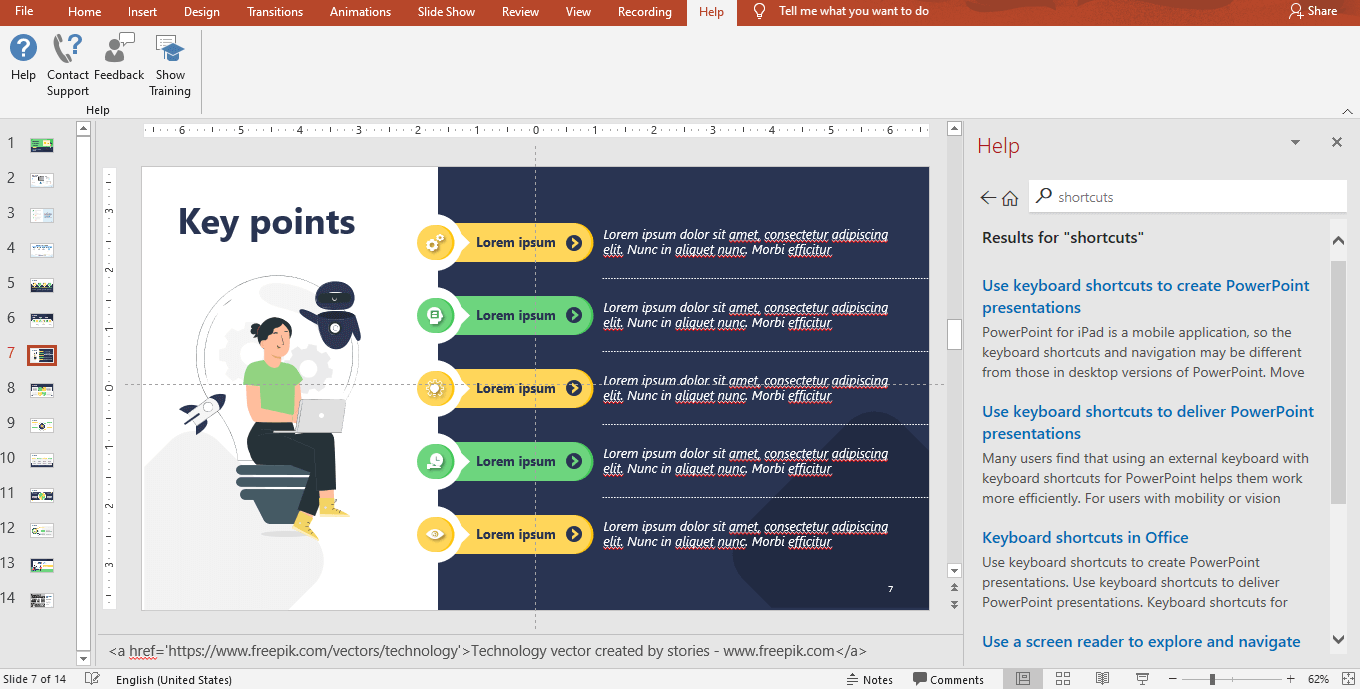
Note that this option only works when you're connected to the internet.
INFOGRAPHIC: Top PowerPoint Keyboard Shortcuts Every Presenter Should Know
This infographic summarizes all the PowerPoint keyboard shortcuts we've covered.

Save it, share it, and don't forget to practice before your live presentation!
Questions and Answers
How do I start a PowerPoint slideshow with a keyboard shortcut?
Press F5 to start from the first slide, or Shift + F5 to start from the currently selected slide.
How can I draw on my slides during a presentation?
Ctrl + P turns on the pen, Ctrl + I the highlighter and Ctrl + L the laser pointer. Ctrl + E activates the eraser and the E key removes all marks at once.
How do I black out the screen during a presentation?
Press B for a black screen or W for a white screen. Press the same key again to return to your slides.
Where can I find a list of all PowerPoint shortcuts?
During a slideshow, press F1 to see the available shortcuts. In Normal view, open Help with F1 and search for "shortcuts".
For professional PowerPoint presentations, PeknéPrezky is happy to help.
'%3e%3cg%3e%3cg%20clip-path='url(%23clip0)'%3e%3cg%20clip-path='url(%23clip1)'%3e%3cg%20clip-path='url(%23clip2)'%3e%3cpath%20d='M42.2903%206.48009%2037.5197%201.70949C36.9562%201.146%2036.0425%201.146%2035.479%201.70949L30.7084%206.48009C30.2956%206.89285%2030.2956%207.56209%2030.7084%207.97488%2031.1211%208.38769%2031.7903%208.38769%2032.2031%207.97492L35.4604%204.73558C35.3251%2018.2709%2028.8666%2022.8405%2024.9997%2024.3607%2024.7212%2024.4702%2024.4394%2024.5702%2024.1543%2024.6608%2024.4533%2023.5617%2024.6761%2022.4433%2024.8209%2021.3136%2025.2952%2017.5644%2024.7544%2014.4593%2023.297%2012.5703%2021.0817%209.69872%2018.1357%208.40341%2015.0033%208.92243%2013.4035%209.19858%2011.9099%209.90805%2010.6851%2010.9737%209.44744%2012.0265%208.51416%2013.3913%207.98207%2014.9266%206.95868%2017.928%207.73529%2021.1154%2010.1133%2023.6717%2012.3931%2026.1228%2016.0101%2027.4462%2019.8085%2027.4461%2020.1948%2027.4461%2020.5826%2027.4323%2020.9716%2027.4045%2020.447%2028.6318%2019.8231%2029.8142%2019.1062%2030.94%2016.6406%2034.8015%2011.0472%2040.9488%201.28823%2038.7374%200.718472%2038.6156%200.157894%2038.9788%200.0361458%2039.5486-0.0835124%2040.1086%200.265397%2040.6617%200.822294%2040.795%202.2854%2041.1332%203.78171%2041.307%205.28339%2041.313%207.92696%2041.3246%2010.5362%2040.7137%2012.8998%2039.5297%2015.9982%2037.9815%2018.7592%2035.404%2020.8844%2032.0759%2021.8907%2030.4935%2022.7285%2028.8101%2023.3841%2027.0532%2024.1978%2026.8725%2024.9962%2026.6288%2025.772%2026.3242%2029.1932%2024.979%2032.0632%2022.4904%2034.0714%2019.1272%2036.3368%2015.3337%2037.513%2010.4981%2037.5709%204.74972L40.7959%207.97475C41.2087%208.38752%2041.8779%208.38752%2042.2907%207.97471%2042.7034%207.56192%2042.7034%206.89269%2042.2906%206.47993ZM22.7279%2021.0489C22.5458%2022.4549%2022.2349%2023.8412%2021.7992%2025.1903%2017.8943%2025.7249%2013.8966%2024.6417%2011.6577%2022.2348%209.79897%2020.2366%209.20266%2017.8833%209.97861%2015.6075%2010.7816%2013.2529%2012.9394%2011.4029%2015.3479%2011.0038%2015.6673%2010.9506%2015.9904%2010.9237%2016.3141%2010.9235%2018.2891%2010.9235%2020.1473%2011.9417%2021.6263%2013.8589%2022.7245%2015.2823%2023.1259%2017.9029%2022.7279%2021.0488Z'%20fill='%23BFBFBF'%20fill-rule='nonzero'%20fill-opacity='1'%20transform='matrix(0.771742%200.635935%200.635935%20-0.771742%20356.612%204176.52)'/%3e%3c/g%3e%3c/g%3e%3c/g%3e%3c/g%3e%3c/g%3e%3c/svg%3e)