How to create an interactive PowerPoint
An interactive PowerPoint lets the viewer choose what to explore and in what order. It is a great fit for training, product demos and standalone decks that need to engage the audience. This guide walks through navigation, triggers, quizzes, professional use cases and practical tips from real projects.

Why interactive presentations work
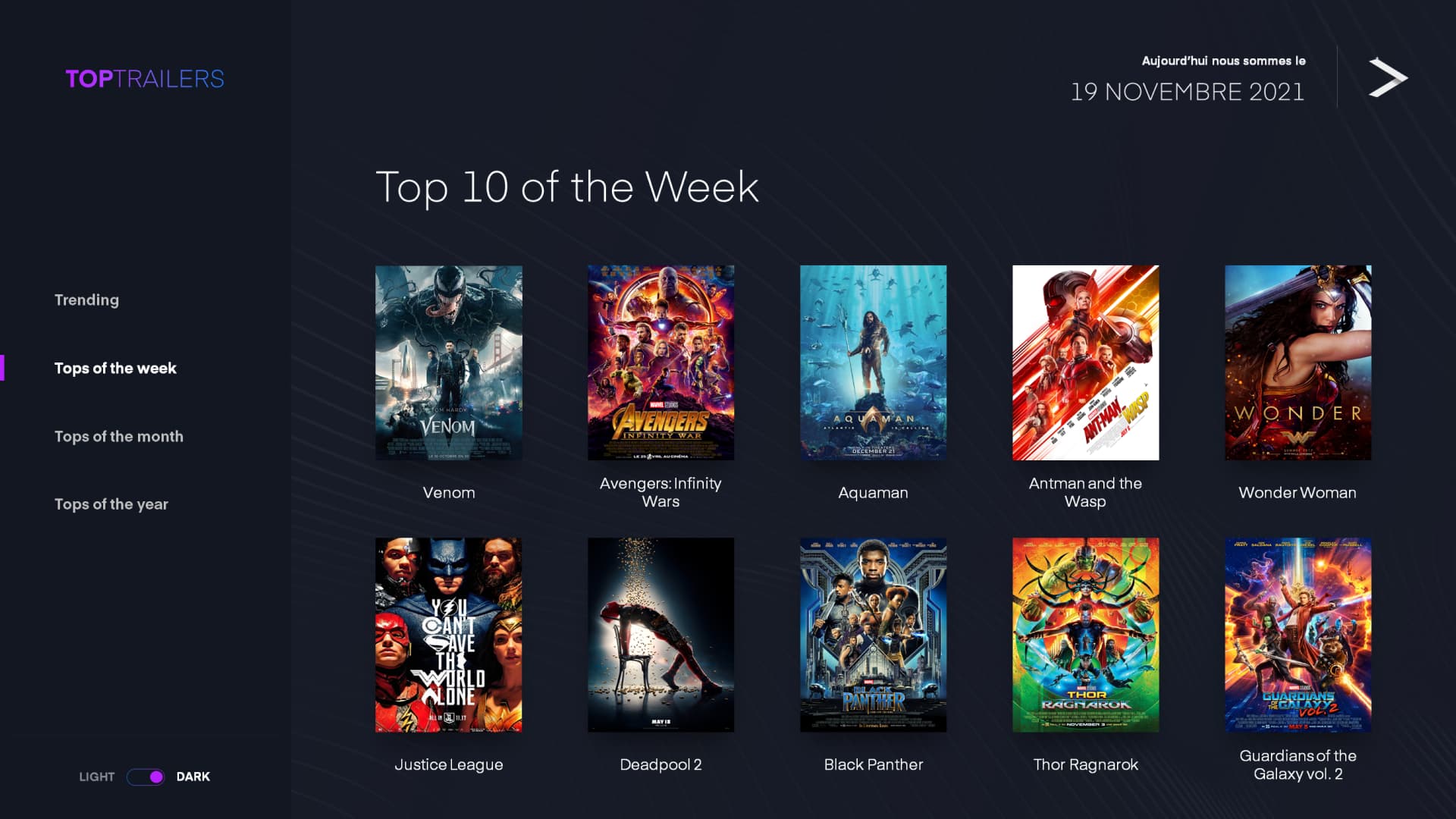
Whenever we convert a static deck into an interactive one, the pattern is the same: meetings run longer, clients ask more questions and win rates go up. The secret is simple — the viewer stops being passive and becomes a participant.
This tutorial shows how to build one yourself in PowerPoint — navigation, triggers, quizzes, professional use cases and how to measure whether the interactivity is worth the design effort.
Definition and key elements
An interactive PowerPoint is a presentation where users navigate freely between slides and activate elements on demand, instead of following a fixed order. It rests on three pillars: non-linear navigation, action triggers and user control.
A well-designed interactive deck takes 2 to 3 times longer to build than a linear slideshow, but offers far greater flexibility in use.
| Criterion | Linear slideshow | Interactive PowerPoint |
|---|---|---|
| Navigation | Sequential (slide 1 → 2 → 3) | Non-linear, direct access |
| Control | Presenter only | Presenter and audience |
| Fixed duration | Yes | No, variable path |
| Audience adaptation | Limited | High |
Building interactive navigation

The main menu is where viewers start. A visual grid of clickable icons works best. Build the menu in PowerPoint like this:
- Create a dedicated menu slide right after the title slide.
- Use Insert → Shapes to add rectangles for each section (ideally 4–6).
- Add a title and icon to each rectangle (title at 24 pt or more).
- Right-click → Hyperlink, then choose "Place in This Document".
- Add a clear tooltip so the viewer knows what is behind the click.
Put identical navigation buttons on every slide — Home (top left), Back (bottom left) and Previous/Next (bottom center). That way the viewer always knows where they are.
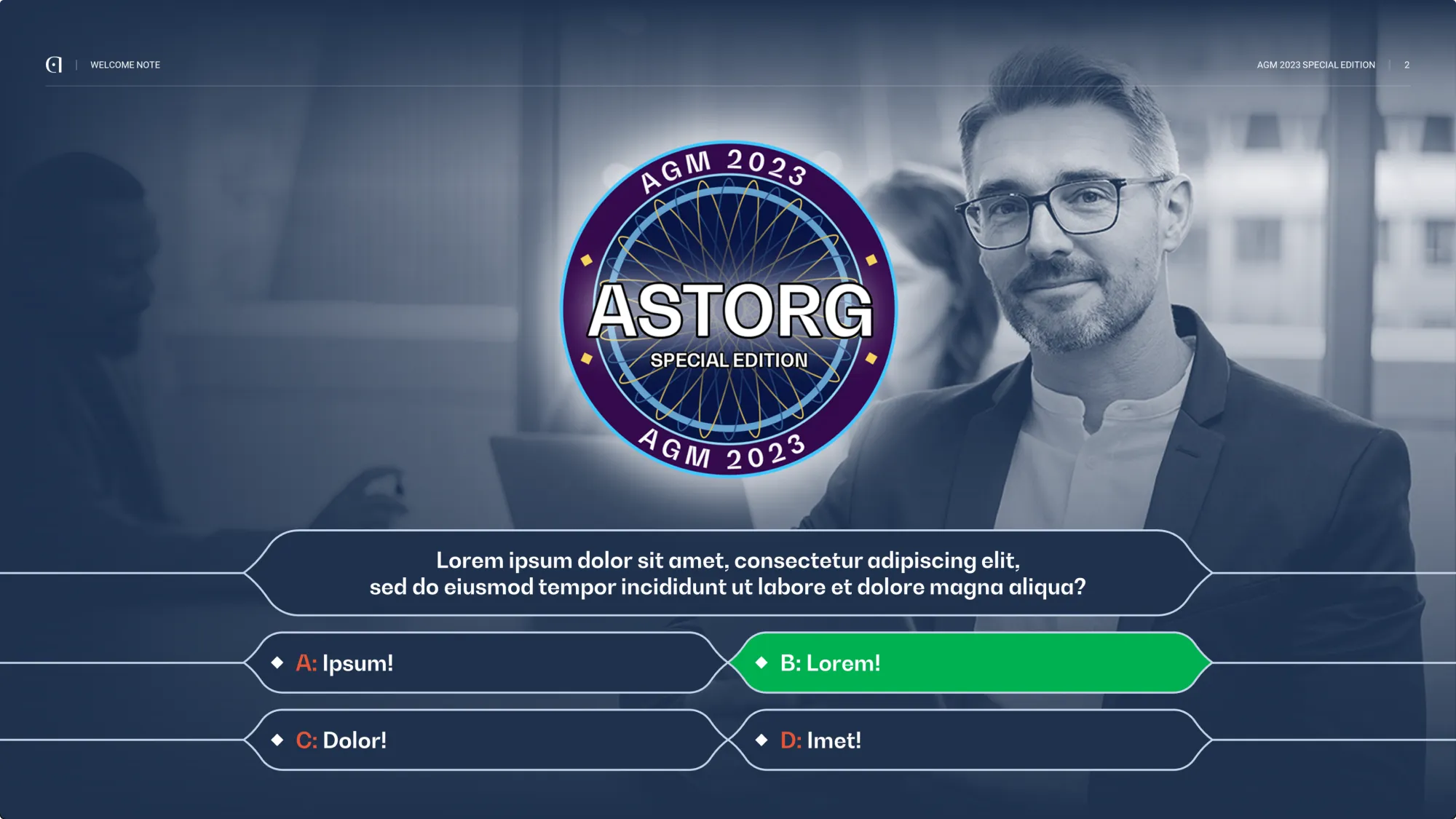
A good interactive deck has three levels: a main menu (5–8 topics), sub-menus (3–6 sub-sections per topic) and detailed content with contextual buttons.
Triggers and interactive animations
A trigger launches an animation when the viewer clicks a specific object. Configure it in Animations → Animation Pane → right-click the animation → Timing → Trigger → Start effect when clicking on, then pick the target object.
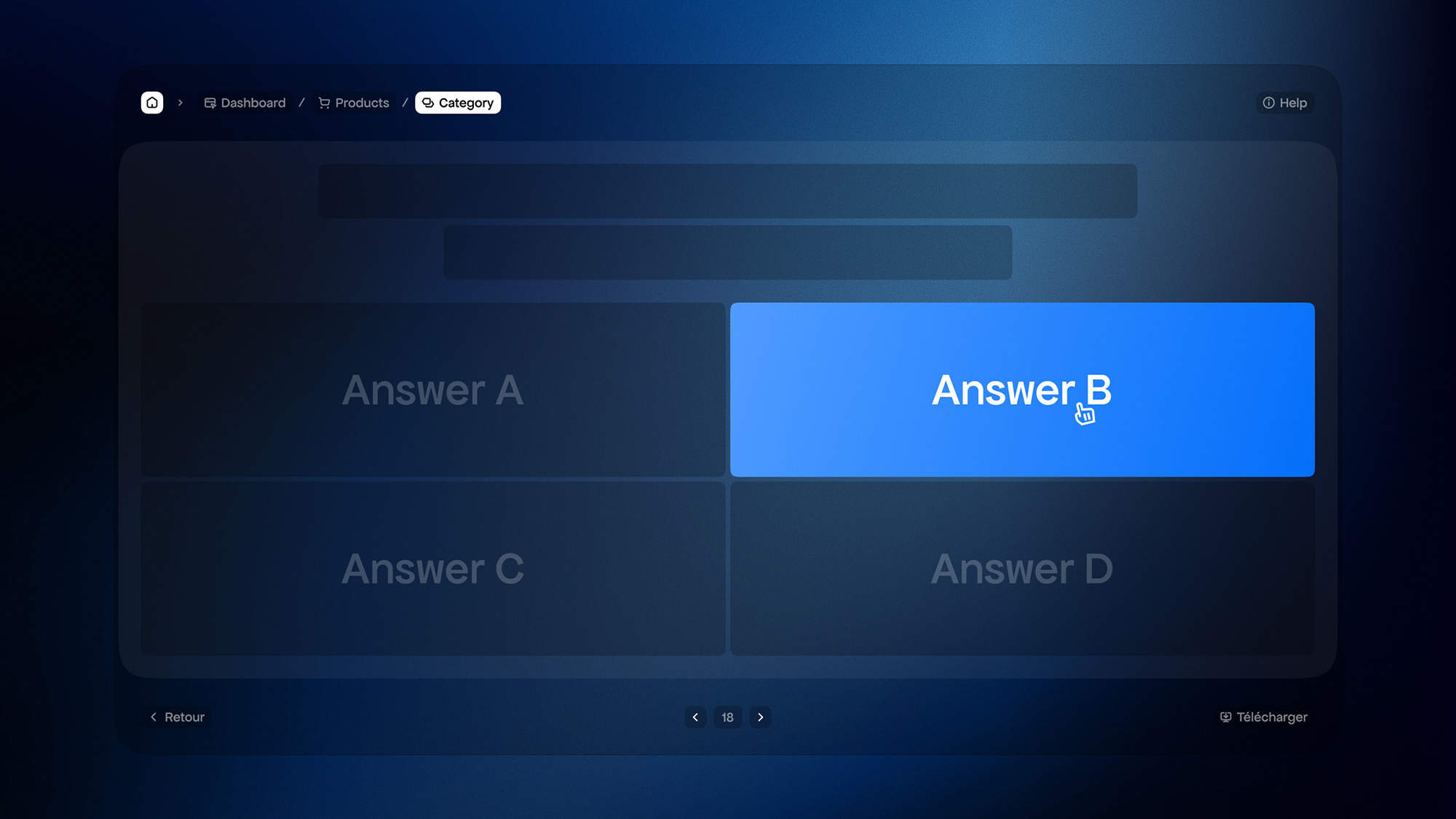
One of the best uses are interactive quizzes with feedback. Question on top, 3–4 identical answer buttons and hidden "Correct" / "Incorrect" zones that appear on click. Remember to disable "On Mouse Click" in Transitions, otherwise the deck advances before the viewer can answer.
Progressive content reveal keeps attention focused. The fastest technique: draw rectangles in the background color over the zones you want to mask, then add a Disappear animation triggered by a click on an info icon.
Professional use cases
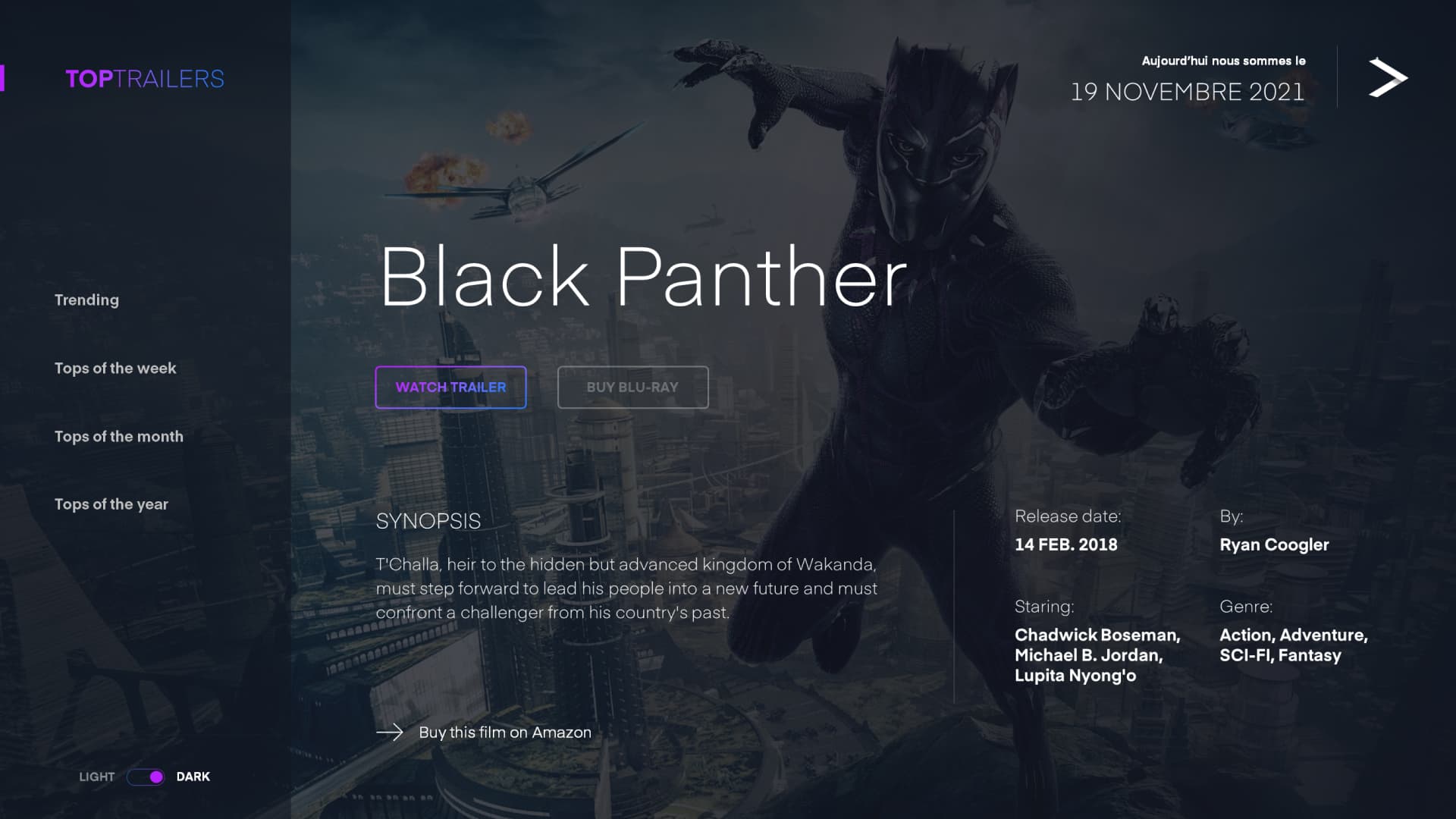
Interactive decks shine in training and e-learning — learners pick modules and progress at their own pace. A typical structure has a home page with learning objectives, independent modules, intermediate quizzes and a visual progress indicator. It cuts training time by 30–40 % because people skip what they already know.
The second strong use case is adaptive sales presentations. You keep 80–100 slides on hand but only show the 15–20 that match the meeting. The menu contains topics like Problem, Solution, Features, Case Studies, Pricing and FAQ — and you jump straight to whatever the prospect cares about.
Best practices and testing
To make sure your interactive deck actually works, stick to a few golden rules:
- Permanent visibility: main navigation elements (Home, Back) always sit in the same place.
- Maximum affordance: every clickable element must look clickable (raised buttons, cursor change, underlines).
- Immediate feedback: every click produces a visible result within 0.5 seconds. Prefer fast animations (0.2–0.3 s).
- Test on a fresh user: let 3–5 people navigate without any explanation. Wherever they get stuck, the navigation is not clear enough.
Frequently asked questions
How much does a custom interactive PowerPoint cost?
An agency-built interactive PowerPoint usually costs 2 to 3 times as much as a static deck of the same size, because it requires navigation logic, animation programming and thorough testing. The price scales with the number of interactive elements and the complexity of the visuals.
How long does an interactive PowerPoint take?
A 20-slide interactive deck takes an experienced designer 2 to 3 times longer than a static equivalent. With a full agency team on it, expect 2 to 3 weeks from brief to delivery. Complex decks with 50+ slides or conditional paths take 4 to 6 weeks.
Can I build it myself or do I need an agency?
DIY works if the deck is internal (training, playbook), the navigation is simple and someone on your team is comfortable with the animation pane. Bring in an agency when the deck goes in front of investors, boards or prospects, when you need custom illustrations, 3+ navigation levels or a deadline under two weeks.
Conclusion
Need an interactive presentation that engages the audience and works even without you? Visit PeknéPrezky.sk.
'%3e%3cg%3e%3cg%20clip-path='url(%23clip0)'%3e%3cg%20clip-path='url(%23clip1)'%3e%3cg%20clip-path='url(%23clip2)'%3e%3cpath%20d='M42.2903%206.48009%2037.5197%201.70949C36.9562%201.146%2036.0425%201.146%2035.479%201.70949L30.7084%206.48009C30.2956%206.89285%2030.2956%207.56209%2030.7084%207.97488%2031.1211%208.38769%2031.7903%208.38769%2032.2031%207.97492L35.4604%204.73558C35.3251%2018.2709%2028.8666%2022.8405%2024.9997%2024.3607%2024.7212%2024.4702%2024.4394%2024.5702%2024.1543%2024.6608%2024.4533%2023.5617%2024.6761%2022.4433%2024.8209%2021.3136%2025.2952%2017.5644%2024.7544%2014.4593%2023.297%2012.5703%2021.0817%209.69872%2018.1357%208.40341%2015.0033%208.92243%2013.4035%209.19858%2011.9099%209.90805%2010.6851%2010.9737%209.44744%2012.0265%208.51416%2013.3913%207.98207%2014.9266%206.95868%2017.928%207.73529%2021.1154%2010.1133%2023.6717%2012.3931%2026.1228%2016.0101%2027.4462%2019.8085%2027.4461%2020.1948%2027.4461%2020.5826%2027.4323%2020.9716%2027.4045%2020.447%2028.6318%2019.8231%2029.8142%2019.1062%2030.94%2016.6406%2034.8015%2011.0472%2040.9488%201.28823%2038.7374%200.718472%2038.6156%200.157894%2038.9788%200.0361458%2039.5486-0.0835124%2040.1086%200.265397%2040.6617%200.822294%2040.795%202.2854%2041.1332%203.78171%2041.307%205.28339%2041.313%207.92696%2041.3246%2010.5362%2040.7137%2012.8998%2039.5297%2015.9982%2037.9815%2018.7592%2035.404%2020.8844%2032.0759%2021.8907%2030.4935%2022.7285%2028.8101%2023.3841%2027.0532%2024.1978%2026.8725%2024.9962%2026.6288%2025.772%2026.3242%2029.1932%2024.979%2032.0632%2022.4904%2034.0714%2019.1272%2036.3368%2015.3337%2037.513%2010.4981%2037.5709%204.74972L40.7959%207.97475C41.2087%208.38752%2041.8779%208.38752%2042.2907%207.97471%2042.7034%207.56192%2042.7034%206.89269%2042.2906%206.47993ZM22.7279%2021.0489C22.5458%2022.4549%2022.2349%2023.8412%2021.7992%2025.1903%2017.8943%2025.7249%2013.8966%2024.6417%2011.6577%2022.2348%209.79897%2020.2366%209.20266%2017.8833%209.97861%2015.6075%2010.7816%2013.2529%2012.9394%2011.4029%2015.3479%2011.0038%2015.6673%2010.9506%2015.9904%2010.9237%2016.3141%2010.9235%2018.2891%2010.9235%2020.1473%2011.9417%2021.6263%2013.8589%2022.7245%2015.2823%2023.1259%2017.9029%2022.7279%2021.0488Z'%20fill='%23BFBFBF'%20fill-rule='nonzero'%20fill-opacity='1'%20transform='matrix(0.771742%200.635935%200.635935%20-0.771742%20356.612%204176.52)'/%3e%3c/g%3e%3c/g%3e%3c/g%3e%3c/g%3e%3c/g%3e%3c/svg%3e)