How to export PowerPoint slides as high-resolution images
Sometimes you need to export PowerPoint slides as high-resolution images (JPEG or PNG) — for print or large displays. The default export resolution is very low. Here's a quick fix.


How to change the export resolution setting
You only need to update a single value in the Windows Registry Editor once, and every future export will be in full resolution.
Step 1: Change the export resolution setting
- Close PowerPoint and other Windows-based programs.
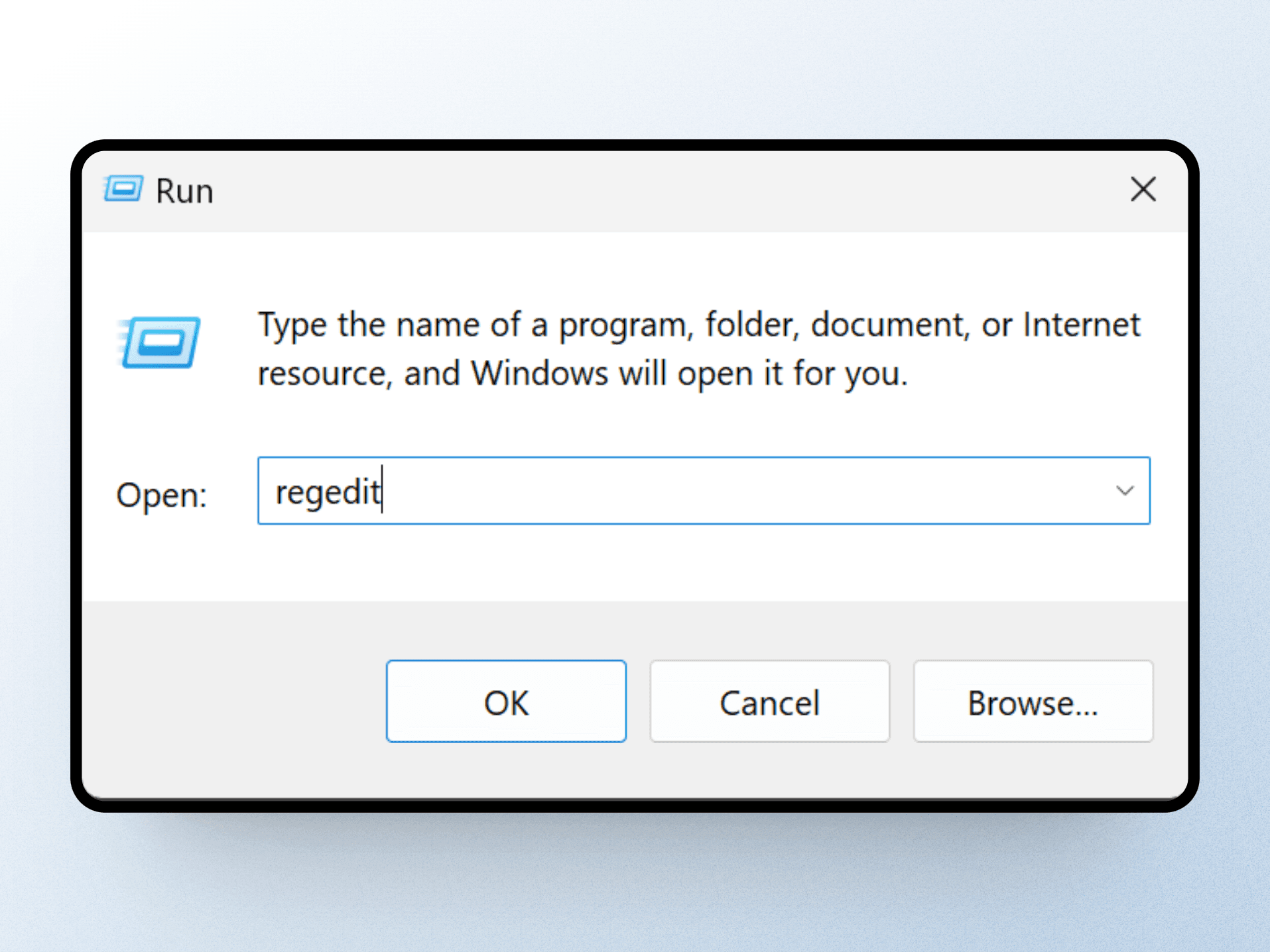
- Right-click the Start button and select "Run".
- Type `regedit` in the Open box and click "OK".
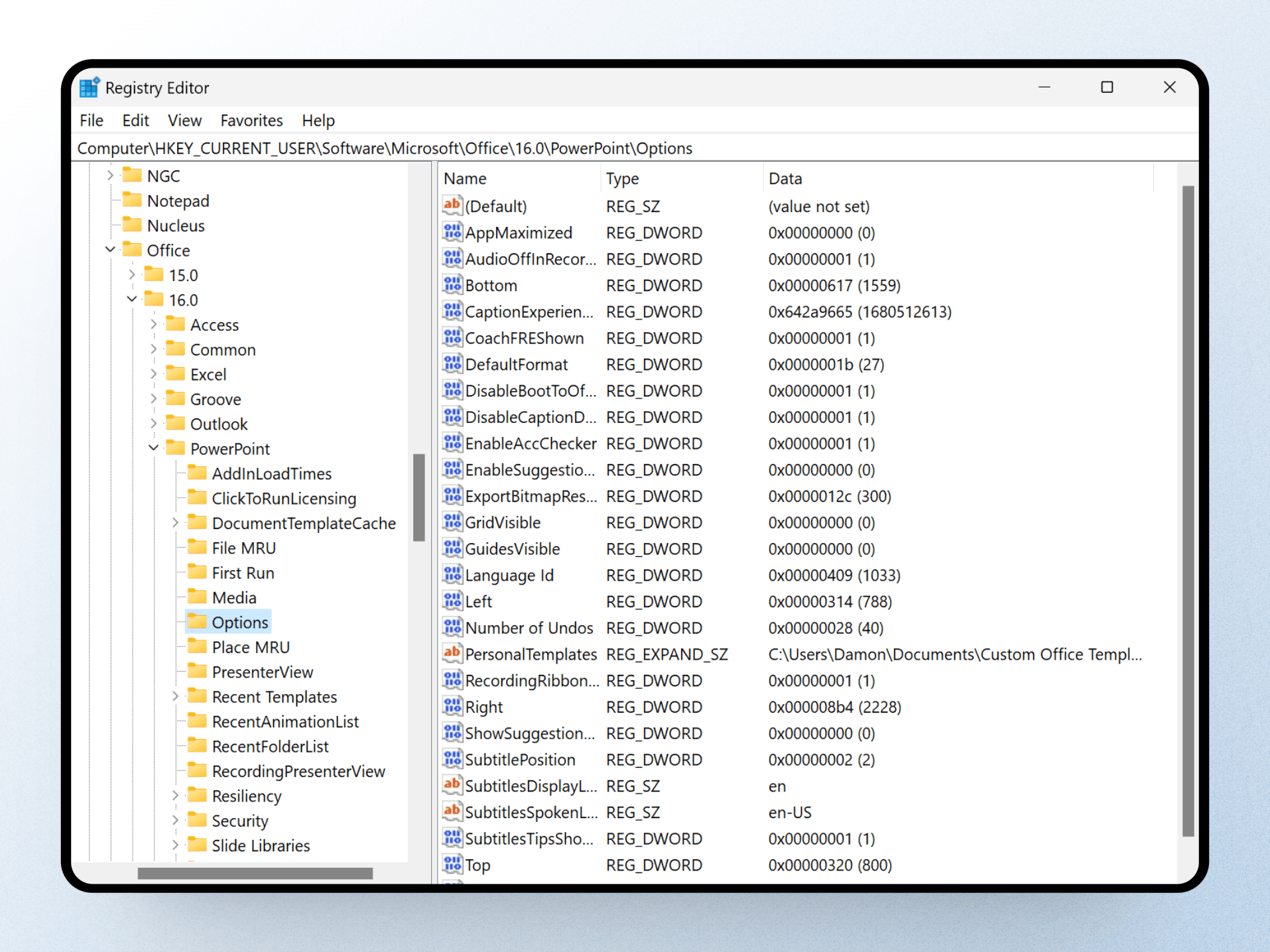
4. Navigate to the PowerPoint registry subkey. Depending on your PowerPoint version, it will most likely be at:
HKEY_CURRENT_USER\Software\Microsoft\Office\16.0\PowerPoint\Options
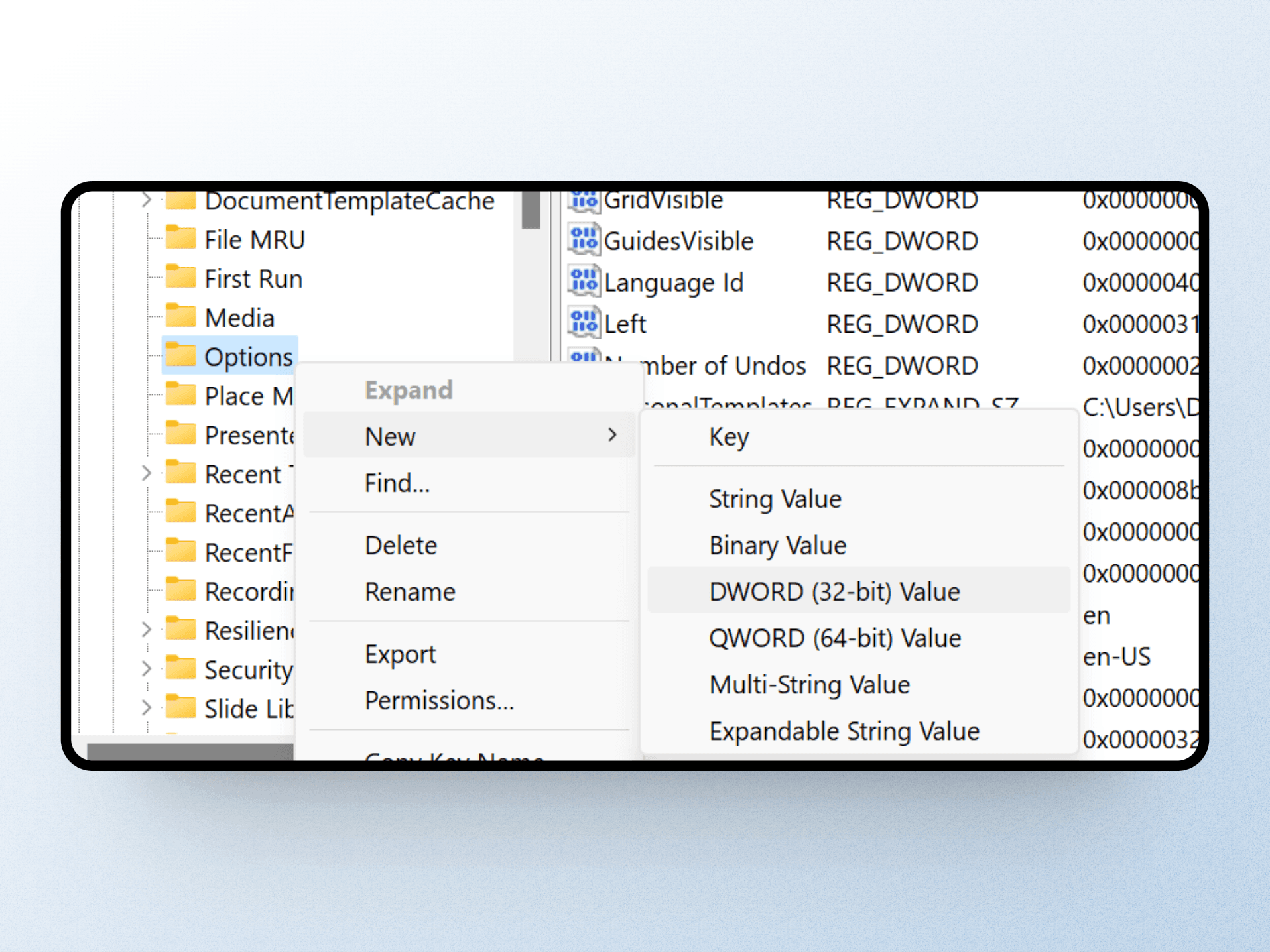
5. Right-click the Options subkey, select "New", then "DWORD (32-bit) Value". Name the new value `ExportBitmapResolution` and press Enter.
6. Double-click the `ExportBitmapResolution` value you just created.
In the Value dialog, select "Decimal" and enter `300` in the data box — that's 300 DPI (the highest resolution). Click "OK".
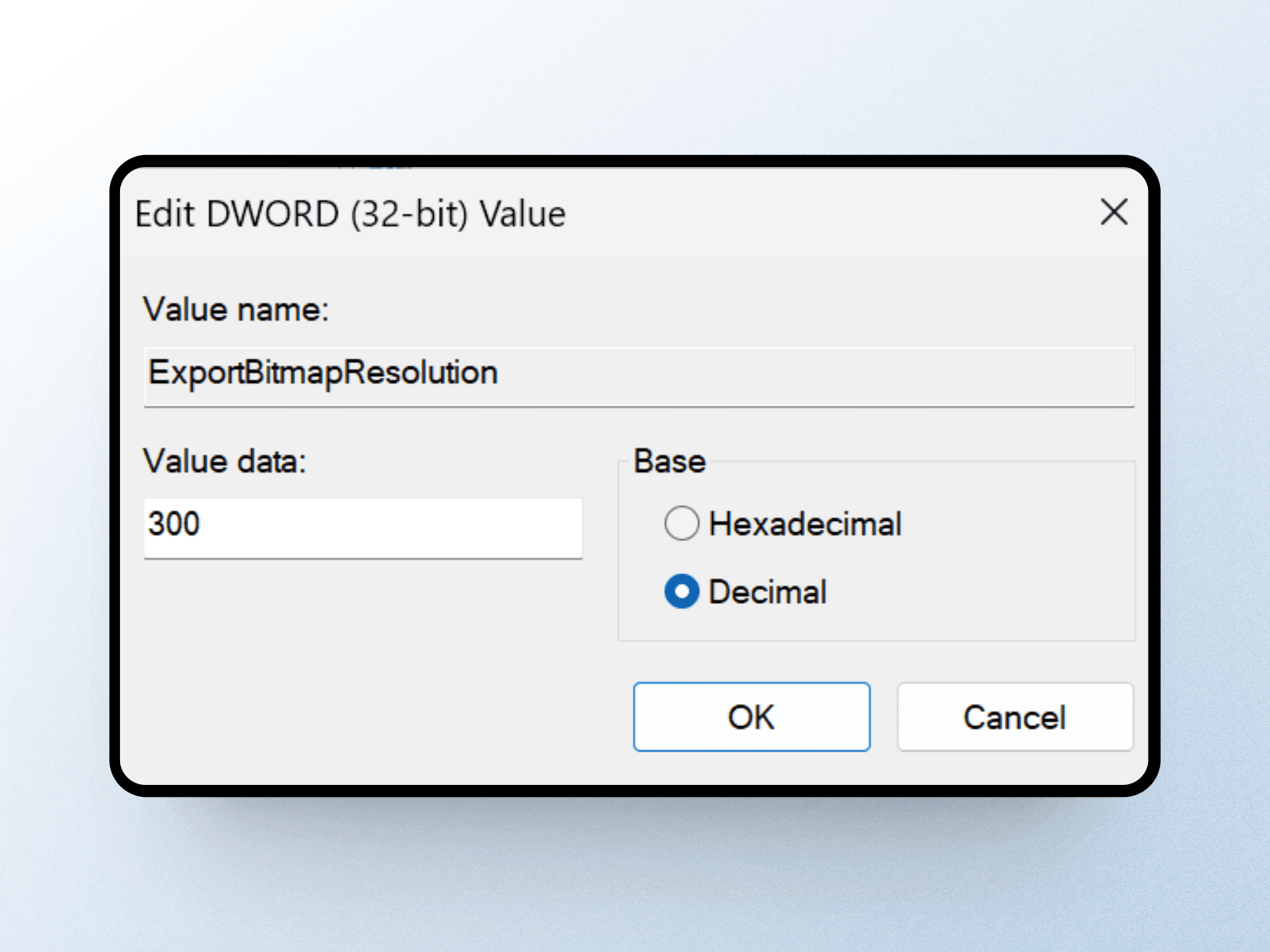
7. Exit the Registry Editor and restart your computer.
Step 2: Export your slide as a high-resolution image
- Open the PowerPoint presentation you want to export.
- Go to `File > Save As`.
- Choose a location for the file.
- In the "Save as type" box, select an image format (e.g. JPEG).
- Click "Save" and choose "Just This Slide" or "All Slides".
Your exported slides will now be in full resolution — perfect for detailed prints and high-quality displays. You can double-check by right-clicking any exported JPEG and viewing the "Details" tab.
Conclusion
Need a professional presentation ready for high-resolution print too? Visit PeknéPrezky.sk.
'%3e%3cg%3e%3cg%20clip-path='url(%23clip0)'%3e%3cg%20clip-path='url(%23clip1)'%3e%3cg%20clip-path='url(%23clip2)'%3e%3cpath%20d='M42.2903%206.48009%2037.5197%201.70949C36.9562%201.146%2036.0425%201.146%2035.479%201.70949L30.7084%206.48009C30.2956%206.89285%2030.2956%207.56209%2030.7084%207.97488%2031.1211%208.38769%2031.7903%208.38769%2032.2031%207.97492L35.4604%204.73558C35.3251%2018.2709%2028.8666%2022.8405%2024.9997%2024.3607%2024.7212%2024.4702%2024.4394%2024.5702%2024.1543%2024.6608%2024.4533%2023.5617%2024.6761%2022.4433%2024.8209%2021.3136%2025.2952%2017.5644%2024.7544%2014.4593%2023.297%2012.5703%2021.0817%209.69872%2018.1357%208.40341%2015.0033%208.92243%2013.4035%209.19858%2011.9099%209.90805%2010.6851%2010.9737%209.44744%2012.0265%208.51416%2013.3913%207.98207%2014.9266%206.95868%2017.928%207.73529%2021.1154%2010.1133%2023.6717%2012.3931%2026.1228%2016.0101%2027.4462%2019.8085%2027.4461%2020.1948%2027.4461%2020.5826%2027.4323%2020.9716%2027.4045%2020.447%2028.6318%2019.8231%2029.8142%2019.1062%2030.94%2016.6406%2034.8015%2011.0472%2040.9488%201.28823%2038.7374%200.718472%2038.6156%200.157894%2038.9788%200.0361458%2039.5486-0.0835124%2040.1086%200.265397%2040.6617%200.822294%2040.795%202.2854%2041.1332%203.78171%2041.307%205.28339%2041.313%207.92696%2041.3246%2010.5362%2040.7137%2012.8998%2039.5297%2015.9982%2037.9815%2018.7592%2035.404%2020.8844%2032.0759%2021.8907%2030.4935%2022.7285%2028.8101%2023.3841%2027.0532%2024.1978%2026.8725%2024.9962%2026.6288%2025.772%2026.3242%2029.1932%2024.979%2032.0632%2022.4904%2034.0714%2019.1272%2036.3368%2015.3337%2037.513%2010.4981%2037.5709%204.74972L40.7959%207.97475C41.2087%208.38752%2041.8779%208.38752%2042.2907%207.97471%2042.7034%207.56192%2042.7034%206.89269%2042.2906%206.47993ZM22.7279%2021.0489C22.5458%2022.4549%2022.2349%2023.8412%2021.7992%2025.1903%2017.8943%2025.7249%2013.8966%2024.6417%2011.6577%2022.2348%209.79897%2020.2366%209.20266%2017.8833%209.97861%2015.6075%2010.7816%2013.2529%2012.9394%2011.4029%2015.3479%2011.0038%2015.6673%2010.9506%2015.9904%2010.9237%2016.3141%2010.9235%2018.2891%2010.9235%2020.1473%2011.9417%2021.6263%2013.8589%2022.7245%2015.2823%2023.1259%2017.9029%2022.7279%2021.0488Z'%20fill='%23BFBFBF'%20fill-rule='nonzero'%20fill-opacity='1'%20transform='matrix(0.771742%200.635935%200.635935%20-0.771742%20356.612%204176.52)'/%3e%3c/g%3e%3c/g%3e%3c/g%3e%3c/g%3e%3c/g%3e%3c/svg%3e)