How to Create an Interactive PowerPoint: Complete Guide
An interactive PowerPoint turns a linear presentation into a dynamic experience where the user decides on the navigation. With hyperlinks, clickable buttons, animation triggers, and interactive areas, the presenter or audience chooses their path through the content.

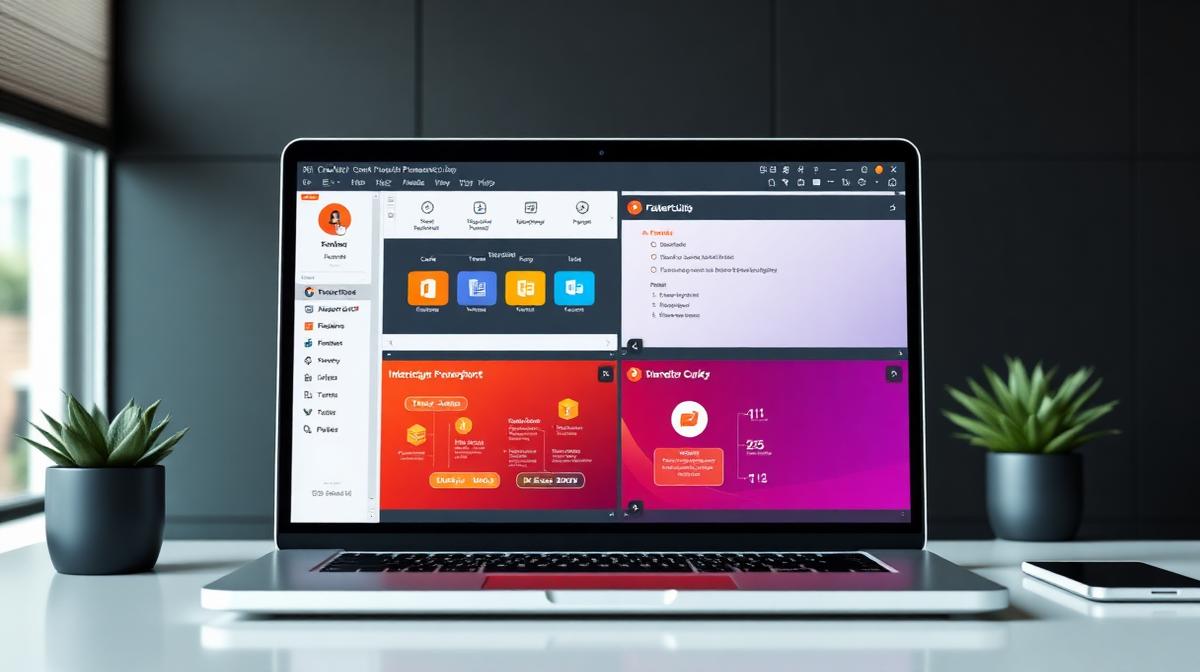
Definition and Key Elements
An interactive PowerPoint is a presentation that allows users to navigate freely between slides and activate elements according to their needs, rather than following a predefined order.
Interactivity rests on three pillars: non-linear navigation, action triggers, and user control. This approach transforms a passive viewer into an engaged actor who explores relevant sections at their own pace.
💡An interactive presentation requires 2 to 3 times more design time than a linear one, but offers incomparable flexibility during use.
Difference from Linear Presentation
| Criterion | Linear Presentation | Interactive PowerPoint |
|---|---|---|
| Navigation | Sequential (slide 1 → 2 → 3) | Non-linear (direct access) |
| Control | Presenter only | Presenter + audience |
| Fixed duration | Yes | No (variable path) |
| Audience adaptation | Limited | High |
| Autonomous use | Difficult | Optimal |
Interactive PowerPoints excel in training, interactive FAQs, product catalogs, and technical demonstrations. Linear presentations are better for chronological sales pitches and company storytelling.
Creating Interactive Navigation
The main menu constitutes the central hub of your presentation. A visual grid with icons represents the optimal approach.
Main Menu and Hyperlinks
Creating an interactive menu:
- Create a menu slide right after the title slide
- Insert > Shapes — create rectangles for each section (max 4-6 sections)
- Add title + icon in each rectangle (24pt font for titles)
- Right-click > Hyperlink on each rectangle
- Choose "Place in This Document" and select the destination slide
Permanent Navigation Buttons
Create consistent navigation buttons on all slides to prevent users from getting lost. Standard buttons: Home (top left), Back (bottom left), Previous/Next (bottom center).
📋Create your navigation buttons before starting your content, then copy them to each slide to guarantee visual consistency.
Three-Level Structure
Effective architecture includes three navigation levels: Level 1 — main menu with 5-8 thematic sections. Level 2 — sub-menus with 3-6 sub-sections per theme. Level 3 — detailed content with contextual buttons (previous/next/back).
Want to know how to start a presentation with a strong opening? Read our article How to Start a Presentation with Impact.
Triggers and Interactive Animations
Triggers allow launching animations in response to clicking a specific object, creating a truly interactive experience.
Animation Trigger Configuration
Step-by-step configuration:
- Create an animation on the target object: Animations > Add Animation
- Open Animation Pane: Animations > Animation Pane
- Right-click on the animation in the pane > Timing
- Select "Trigger" > Start effect when clicking on
- Choose the trigger object from the list
Interactive Quizzes with Feedback
Quizzes transform a presentation into an assessment tool with immediate validation. Quiz slide structure: question at top (min 28pt font), 3-4 identical rectangular answer buttons, hidden feedback zones (green ✓ and red ✗).
For the correct answer, create a green ✓ icon with "Correct!" text and configure the trigger on click of the correct answer button. For incorrect answers, create a red ✗ icon with "Incorrect" text.
⚠️Disable automatic advance on click for quiz slides (Transitions > uncheck "On Mouse Click"). The user must be able to click on answers without advancing the presentation.
Progressive Content Revelation
Step-by-step revelation combats information overload and maintains attention. Methods include: layered overlays (low complexity), masked zones (medium), and sequential appearance (high flexibility).
💡Combine "Appear" (instant) and "Wipe" (progressive) animations to create visual hierarchy. The main element appears instantly, details wipe afterward.
Professional Use Cases
Interactive PowerPoints have broad applications across various professional scenarios.
Training and E-learning
Interactive PowerPoints revolutionize training by enabling autonomous learning at a personalized pace. E-learning module structure:
- Home page with pedagogical objectives and training plan
- Independent modules accessible in any order
- Intermediate quizzes to validate understanding
- Interactive glossary with alphabetical links
Adaptive Sales Presentations
Adapt your sales presentation in real-time according to prospect reactions. A main menu with 5-6 themes allows navigation to sections of interest. This approach lets you manage 80-100 slides while showing only 15-20 during a meeting.
Also check out why bad slides kill good ideas and how to create a clear speech.
Interactive Kiosks and Stands
For autonomous use at events, set kiosk mode (Slide Show > Set Up Show > "Browsed at a kiosk"). Increase button size to minimum 60x60 pixels for touch screens and add a permanent "Restart" button.
💡Interactive PowerPoint training reduces training time by 30-40% compared to linear formats thanks to direct navigation to relevant sections.
Best Practices and Testing
Golden rules of clear navigation:
- Permanent visibility — navigation elements (Home, Back) must be present and positioned identically on each slide
- Maximum affordance — every clickable element must appear clickable (relief buttons, link underlining)
- Immediate feedback — every click produces a visible result within 0.5 seconds maximum
- Test your navigation with a person discovering the presentation without explanation
Multi-Platform Compatibility
| Platform | Hyperlinks | Action Buttons | Animation Triggers |
|---|---|---|---|
| PowerPoint Windows | ✓ | ✓ | ✓ |
| PowerPoint Mac | ✓ | ✓ | ✓ |
| PowerPoint Online | ✓ | ✓ | Partial |
| PowerPoint iOS/Android | ✓ | Limited | ✗ |
| PDF export | URLs only | ✗ | ✗ |
📋For maximum compatibility, base your interactivity on hyperlinks and action buttons rather than complex animation triggers.
Frequently Asked Questions
How to create a navigation menu in PowerPoint?
Create a slide with rectangular shapes representing each section. Add a hyperlink to each shape (right-click > Hyperlink > Place in This Document) pointing to the first slide of the corresponding section.
Do interactive animations work in PowerPoint Online?
Hyperlinks and action buttons work correctly. However, advanced animation triggers are only partially supported. For optimal compatibility, favor hyperlinks over complex triggers.
Can you create a quiz with automatic correction in PowerPoint?
Yes, using animation triggers. Create hidden feedback zones and configure triggers so clicking the correct answer displays validation and clicking an incorrect answer displays an error.
How to prevent users from getting lost in an interactive presentation?
Include a visible "Home" button on each slide allowing return to the main menu anytime. Add a breadcrumb indicating current position in the structure and test all navigation paths.
Conclusion
An interactive PowerPoint transforms your presentations into engaging experiences where the user controls their path. By combining navigation menus, action buttons, and animation triggers, you create autonomous training, adaptive demonstrations, and flexible sales materials that significantly increase information retention.
Need help creating professional interactive presentations? Contact us at PeknéPrezky.sk
'%3e%3cg%3e%3cg%20clip-path='url(%23clip0)'%3e%3cg%20clip-path='url(%23clip1)'%3e%3cg%20clip-path='url(%23clip2)'%3e%3cpath%20d='M42.2903%206.48009%2037.5197%201.70949C36.9562%201.146%2036.0425%201.146%2035.479%201.70949L30.7084%206.48009C30.2956%206.89285%2030.2956%207.56209%2030.7084%207.97488%2031.1211%208.38769%2031.7903%208.38769%2032.2031%207.97492L35.4604%204.73558C35.3251%2018.2709%2028.8666%2022.8405%2024.9997%2024.3607%2024.7212%2024.4702%2024.4394%2024.5702%2024.1543%2024.6608%2024.4533%2023.5617%2024.6761%2022.4433%2024.8209%2021.3136%2025.2952%2017.5644%2024.7544%2014.4593%2023.297%2012.5703%2021.0817%209.69872%2018.1357%208.40341%2015.0033%208.92243%2013.4035%209.19858%2011.9099%209.90805%2010.6851%2010.9737%209.44744%2012.0265%208.51416%2013.3913%207.98207%2014.9266%206.95868%2017.928%207.73529%2021.1154%2010.1133%2023.6717%2012.3931%2026.1228%2016.0101%2027.4462%2019.8085%2027.4461%2020.1948%2027.4461%2020.5826%2027.4323%2020.9716%2027.4045%2020.447%2028.6318%2019.8231%2029.8142%2019.1062%2030.94%2016.6406%2034.8015%2011.0472%2040.9488%201.28823%2038.7374%200.718472%2038.6156%200.157894%2038.9788%200.0361458%2039.5486-0.0835124%2040.1086%200.265397%2040.6617%200.822294%2040.795%202.2854%2041.1332%203.78171%2041.307%205.28339%2041.313%207.92696%2041.3246%2010.5362%2040.7137%2012.8998%2039.5297%2015.9982%2037.9815%2018.7592%2035.404%2020.8844%2032.0759%2021.8907%2030.4935%2022.7285%2028.8101%2023.3841%2027.0532%2024.1978%2026.8725%2024.9962%2026.6288%2025.772%2026.3242%2029.1932%2024.979%2032.0632%2022.4904%2034.0714%2019.1272%2036.3368%2015.3337%2037.513%2010.4981%2037.5709%204.74972L40.7959%207.97475C41.2087%208.38752%2041.8779%208.38752%2042.2907%207.97471%2042.7034%207.56192%2042.7034%206.89269%2042.2906%206.47993ZM22.7279%2021.0489C22.5458%2022.4549%2022.2349%2023.8412%2021.7992%2025.1903%2017.8943%2025.7249%2013.8966%2024.6417%2011.6577%2022.2348%209.79897%2020.2366%209.20266%2017.8833%209.97861%2015.6075%2010.7816%2013.2529%2012.9394%2011.4029%2015.3479%2011.0038%2015.6673%2010.9506%2015.9904%2010.9237%2016.3141%2010.9235%2018.2891%2010.9235%2020.1473%2011.9417%2021.6263%2013.8589%2022.7245%2015.2823%2023.1259%2017.9029%2022.7279%2021.0488Z'%20fill='%23BFBFBF'%20fill-rule='nonzero'%20fill-opacity='1'%20transform='matrix(0.771742%200.635935%200.635935%20-0.771742%20356.612%204176.52)'/%3e%3c/g%3e%3c/g%3e%3c/g%3e%3c/g%3e%3c/g%3e%3c/svg%3e)